Introduction
My Debian 8-based web server had been running for several years as an OpenVZ container, when the web host told me that containers are phased out, and it’s time to move on to a KVM.
This is an opportunity to upgrade to a newer distribution, most of you would say, but if a machine works flawlessly for a long period of time, I’m very reluctant to change anything. Don’t touch a stable system. It just happened to have an uptime of 426 days, and the last time this server caused me trouble was way before that.
So the question is if it’s possible to convert a container into a KVM machine, just by copying the filesystem. After all, what’s the difference if /sbin/init (systemd) is kicked off as a plain process inside a container or if the kernel does the same thing?
The answer is yes-ish, this manipulation is possible, but it requires some adjustments.
These are my notes and action items while I found my way to get it done. Everything below is very specific to my own slightly bizarre case, and at times I ended up carrying out tasks in a different order than as listed here. But this can be useful for understanding what’s ahead.
By the way, the wisest thing I did throughout this process, was to go through the whole process on a KVM machine that I built on my own local computer. This virtual machine functioned as a mockup of the server to be installed. Not only did it make the trial and error much easier, but it also allowed me to test all kind of things after the real server was up and running without messing the real machine.
Faking Ubuntu 24.04 LTS
To make things even more interesting, I also wanted to push the next time I’ll be required to mess with the virtual machine as long as possible into the future. Put differently, I wanted to hide the fact that the machine runs on ancient software. There should not be a request to upgrade in the foreseeable future because the old system isn’t compatible with some future version of KVM.
So to the KVM hypervisor, my machine should feel like an Ubuntu 24.04, which was the latest server distribution offered at the time I did this trick. Which brings the question: What does the hypervisor see?
The KVM guest interfaces with its hypervisor in three ways:
- With GRUB, which accesses the virtual disk.
- Through the kernel, which interacts with the virtual hardware.
- Through the guest’s DHCP client, which fetches the IP address, default gateway and DNS from the hypervisor’s dnsmasq.
Or so I hope. Maybe there’s some aspect I’m not aware of. It’s not like I’m such an expert in virtualization.
So the idea was that both GRUB and the kernel should be the same as in Ubuntu 24.04. This way, any KVM setting that works with this distribution will work with my machine. The Naphthalene smell from the user-space software underneath will not reach the hypervisor.
This presumption can turn out to be wrong, and the third item in the list above demonstrates that: The guest machine gets its IP address from the hypervisor through a DHCP request issued by systemd-networkd, which is part of systemd version 215. So the bluff is exposed. Will there be some kind of incompatibility between the old systemd’s DHCP client and some future hypervisor’s response?
Regarding this specific issue, I doubt there will be a problem, as DHCP is such a simple and well-established protocol. And even if that functionality broke, the IP address is fixed anyhow, so the virtual NIC can be configured statically.
But who knows, maybe there is some kind of interaction with systemd that I’m not aware of? Future will tell.
So it boils down to faking GRUB and using a recent kernel.
Solving the GRUB problem
Debian 8 comes with GRUB version 0.97. Could we call that GRUB 1? I can already imagine the answer to my support ticket saying “please upgrade your system, as our KVM hypervisor doesn’t support old versions of GRUB”.
So I need a new one.
Unfortunately, the common way to install GRUB is with a couple of hocus-pocus tools that do the work well in the usual scenario.
As it turns out, there are two parts that need to be installed: The first part consists of the GRUB binary on the boot partition (GRUB partition or EFI, pick your choice), plus several files (modules and other) in /boot/grub/. The second part is a script file, grub.cfg, which is a textual file that can be edited manually.
To make a long story short, I installed the distribution on a virtual machine with the same layout, and made a copy of the grub.cfg file that was created. I then edited this file directly to fit into the new machine. As for installing GRUB binary, I did this from a Live ISO Ubuntu 24.04, so it’s genuine and legit.
For the full and explained story, I’ve written a separate post.
Fitting a decent kernel
This way or another, a kernel and its modules must be added to the filesystem in order to convert it from a container to a KVM machine. This is the essential difference: With a container, one kernel runs all containers and gives them the illusion that they’re the only one. With KVM, the boot starts from the very beginning.
If there was something I didn’t worry about, it was the concept of running an ancient distribution with a very recent kernel. I have a lot of experience with compiling the hot-hot-latest-out kernel and run it with steam engine distributions, and very rarely have I seen any issue with that. The Linux kernel is backward compatible in a remarkable way.
My original idea was to grab the kernel image and the modules from a running installation of Ubuntu 24.04. However, the module format of this distro is incompatible with old Debian 8 (ZST compression seems to have been the crux), and as a result, no modules were loaded.
So I took config-6.8.0-36-generic from Ubuntu 24.04 and used it as the starting point for the .config file used for compiling the vanilla stable kernel with version v6.8.12.
And then there were a few modifications to .config:
- “make oldconfig” asked a few questions and made some minor modifications, nothing apparently related.
- Dropped kernel module compression (CONFIG_MODULE_COMPRESS_ZSTD off) and set kernel’s own compression to gzip. This was probably the reason the distribution’s modules didn’t load.
- Some crypto stuff was disabled: CONFIG_INTEGRITY_PLATFORM_KEYRING, CONFIG_SYSTEM_BLACKLIST_KEYRING and CONFIG_INTEGRITY_MACHINE_KEYRING were dropped, same with CONFIG_LOAD_UEFI_KEYS and most important, CONFIG_SYSTEM_REVOCATION_KEYS was set to “”. Its previous value, “debian/canonical-revoked-certs.pem” made the compilation fail.
- Dropped CONFIG_DRM_I915, which caused some weird compilation error.
- After making a test run with the kernel, I also dropped CONFIG_UBSAN with everything that comes with it. UBSAN spat a lot of warning messages on mainstream drivers, and it’s really annoying. It’s still unclear to me why these warnings don’t appear on the distribution kernel. Maybe because a difference between compiler versions (the warnings stem from checks inserted by gcc).
The compilation took 32 minutes on a machine with 12 cores (6 hyperthreaded). By far, the longest and most difficult kernel compilation I can remember for a long time.
Based upon my own post, I created the Debian packages for the whole thing, using the bindeb-pkg make target.
That took additional 20 minutes, running on all cores. I used two of these packages in the installation of the KVM machine, as shown in the cookbook below.
Methodology
So the deal with my web host was like this: They started a KVM machine (with a different IP address, of course). I prepared this KVM machine, and when that was ready, I sent a support ticket asking for swapping the IP addresses. This way, the KVM machine became the new server, and the old container machine went to the junkyard.
As this machine involved a mail server and web sites with user content (comments to my blog, for example), I decided to stop the active server, copy “all data”, and restart the server only after the IP swap. In other words, the net result should be as if the same server had been shut down for an hour, and then restarted. No discontinuities.
As it turned out, everything that is related to the web server and email, including the logs of everything, are in /var/ and /home/. So I could therefore copy all files from the old server to the new one for the sake of setting it up, and verify that everything is smooth as a first stage.
Then I shut down the services and copied /var/ and /home/. And then came the IP swap.
This simple command is handy for checking which files have changed during the past week. The first finds the directories, and the second the plain files.
# find / -xdev -ctime -7 -type d | sort
# find / -xdev -ctime -7 -type f | sort
The purpose of the -xdev flag is to remain on one filesystem. Otherwise, a lot of files from /proc and such are printed out. If your system has several relevant filesystems, be sure to add them to “/” in this example.
The next few sections below are the cookbook I wrote for myself in order to get it done without messing around (and hence mess up).
In hindsight, I can say that except for dealing with GRUB and the kernel, most of the hassle had to with the NIC: Its name changed from venet0 to eth0, and it got its address through DHCP relatively late in the boot process. And that required some adaptations.
Preparing the virtual machine
- Start the installation Ubuntu 24.04 LTS server edition (or whatever is available, it doesn’t matter much). Possible stop the installation as soon as files are being copied: The only purpose of this step is to partition the disk neatly, so that /dev/vda1 is a small partition for GRUB, and /dev/vda3 is the root filesystem (/dev/vda2 is a swap partition).
- Start the KVM machine with a rescue image (preferable graphical or with sshd running). I went for Ubuntu 24.04 LTS server Live ISO (the best choice provided by my web host). See notes below on using Ubuntu’s server ISO as a rescue image.
- Wipe the existing root filesystem, if such has been installed. I considered this necessary at the time, because the default inode size may be 256, and GRUB version 1 won’t play ball with that. But later on I decided on GRUB 2. Anyhow, I forced it to be 128 bytes, despite the warning that 128-byte inodes cannot handle dates beyond 2038 and are deprecated:
# mkfs.ext4 -I 128 /dev/vda3
- And since I was at it, no automatic fsck check. Ever. It’s really annoying when you want to kick off the server quickly.
# tune2fs -c 0 -i 0 /dev/vda3
- Mount new system as /mnt/new:
# mkdir /mnt/new
# mount /dev/vda3 /mnt/new
- Copy the filesystem. On the OpenVZ machine:
# tar --one-file-system -cz / | nc -q 0 185.250.251.160 1234 > /dev/null
and the other side goes (run this before the command above):
# nc -l 1234 < /dev/null | time tar -C /mnt/new/ -xzv
This took about 30 minutes. The purpose of the “-q 0″ flag and those /dev/null redirections is merely to make nc quit when the tar finishes.
Or, doing the same from a backup tarball:
$ cat myserver-all-24.07.08-08.22.tar.gz | nc -q 0 -l 1234 > /dev/null
and the other side goes
# nc 10.1.1.3 1234 < /dev/null | time tar -C /mnt/new/ -xzv
- Remove old /lib/modules and boot directory:
# rm -rf /mnt/new/lib/modules/ /mnt/new/boot/
- Create /boot/grub and copy the grub.cfg file that I’ve prepared in advance to there. This separate post explains the logic behind doing it this way.
- Install GRUB on the boot parition (this also adds a lot of files to /boot/grub/):
# grub-install --root-directory=/mnt/new /dev/vda
- In order to work inside the chroot, some bind and tmpfs mounts are necessary:
# mount -o bind /dev /mnt/new/dev
# mount -o bind /sys /mnt/new/sys
# mount -t proc /proc /mnt/new/proc
# mount -t tmpfs tmpfs /mnt/new/tmp
# mount -t tmpfs tmpfs /mnt/new/run
- Copy the two .deb files that contain the Linux kernel files to somewhere in /mnt/new/
- Chroot into the new fs:
# chroot /mnt/new/
- Check that /dev, /sys, /proc, /run and /tmp are as expected (mounted correctly).
- Disable and stop these services: bind9, sendmail, cron.
- This wins the prize for the oddest fix: Probably in relation to the OpenVZ container, the LSB modules_dep service is active, and it deletes all module files in /lib/modules on reboot. So make sure to never see it again. Just disabling it wasn’t good enough.
# systemctl mask modules_dep.service
- Install the Linux kernel and its modules into /boot and /lib/modules:
# dpkg -i linux-image-6.8.12-myserver_6.8.12-myserver-2_amd64.deb
- Also install the headers for compilation (why not?)
# dpkg -i linux-headers-6.8.12-myserver_6.8.12-myserver-2_amd64.deb
- Add /etc/systemd/network/20-eth0.network
[Match]
Name=eth0

[Network]
DHCP=yes
The NIC was a given in a container, but now it has to be raised explicitly and the IP address possibly obtained from the hypervisor via DHCP, as I’ve done here.
- Add the two following lines to /etc/sysctl.conf, in order to turn off IPv6:
net.ipv6.conf.all.disable_ipv6 = 1
net.ipv6.conf.default.disable_ipv6 = 1
- Adjust the firewall rules, so that they don’t depend on the server having a specific IP address (because a temporary IP address will be used).
- Add support for lspci (better do it now if something goes wrong after booting):
# apt install pciutils
- Ban the evbug module, which is intended to generate debug message on input devices. Unfortunately, it floods the kernel log sometimes when the mouse goes over the virtual machine’s console window. So ditch it by adding /etc/modprobe.d/evbug-blacklist.conf having this single line:
blacklist evbug
- Edit /etc/fstab. Remove everything, and leave only this row:
/dev/vda3 / ext4 defaults 0 1
- Remove persistence udev rules, if such exist, at /etc/udev/rules.d. Oddly enough, there was nothing in this directory, not in the existing OpenVZ server and not in a regular Ubuntu 24.04 server installation.
- Boot up the system from disk, and perform post-boot fixes as mentioned below.
Post-boot fixes
- Verify that /tmp is indeed mounted as a tmpfs.
- Disable (actually, mask) the automount service, which is useless and fails. This makes systemd’s status degraded, which is practically harmless, but confusing.
# systemctl mask proc-sys-fs-binfmt_misc.automount
- Install the dbus service:
# apt install dbus
Not only is it the right thing to do on a Linux system, but it also silences this warning:
Cannot add dependency job for unit dbus.socket, ignoring: Unit dbus.socket failed to load: No such file or directory.
- Enable login prompt on the default visible console (tty1) so that a prompt appears after all the boot messages:
# systemctl enable getty@tty1.service
The other tty’s got a login prompt when using Ctrl-Alt-Fn, but not the visible console. So this fixed it. Otherwise, one can be mislead into thinking that the boot process is stuck.
- Optionally: Disable vzfifo service and remove /.vzfifo.
Just before the IP address swap
- Reboot the openVZ server to make sure that it wakes up OK.
- Change the openVZ server’s firewall, so works with a different IP address. Otherwise, it becomes unreachable after the IP swap.
- Boot the target KVM machine in rescue mode. No need to set up the ssh server as all will be done through VNC.
- On the KVM machine, mount new system as /mnt/new:
# mkdir /mnt/new
# mount /dev/vda3 /mnt/new
- On the OpenVZ server, check for recently changed directories and files:
# find / -xdev -ctime -7 -type d | sort > recently-changed-dirs.txt
# find / -xdev -ctime -7 -type f | sort > recently-changed-files.txt
- Verify that the changes are only in the places that are going to be updated. If not, consider if and how to update these other files.
- Verify that the mail queue is empty, or let sendmail empty it if possible. Not a good idea to have something firing off as soon as sendmail resumes:
# mailq
- Disable all services except sshd on the OpenVZ server:
# systemctl disable cron dovecot apache2 bind9 sendmail mysql xinetd
- Run “mailq” again to verify that the mail queue is empty (unless there was a reason to leave a message there in the previous check).
- Reboot OpenVZ server and verify that none of these is running. This is the point at which this machine is dismissed as a server, and the downtime clock begins ticking.
- Verify that this server doesn’t listen to any ports except ssh, as an indication that all services are down:
# netstat -n -a | less
- Repeat the check of recently changed files.
- On KVM machine, remove /var and /home.
-
# rm -rf /mnt/new/var /mnt/new/home
- Copy these parts:
On the KVM machine, using the VNC console, go
# nc -l 1234 < /dev/null | time tar -C /mnt/new/ -xzv
and on myserver:
# tar --one-file-system -cz /var /home | nc -q 0 185.250.251.160 1234 > /dev/null
Took 28 minutes.
- Check that /mnt/new/tmp and /mnt/tmp/run are empty and remove whatever is found, if there’s something there. There’s no reason for anything to be there, and it would be weird if there was, given the way the filesystem was copied from the original machine. But if there are any files, it’s just confusing, as /tmp and /run are tmpfs on the running machine, so any files there will be invisible anyhow.
- Reboot the KVM machine with a reboot command. It will stop anyhow for removing the CDROM.
- Remove the KVM’s CDROM and continue the reboot normally.
- Login to the KVM machine with ssh.
- Check that all is OK: systemctl status as well as journalctl. Note that the apache, mysql and dovecot should be running now.
- Power down both virtual machines.
- Request an IP address swap. Let them do whatever they want with the IPv6 addresses, as they are ignored anyhow.
After IP address swap
- Start the KVM server normally, and login normally through ssh.
- Try to browse into the web sites: The web server should already be working properly (even though the DNS is off, but there’s a backup DNS).
- Check journalctl and systemctl status.
- Resume the original firewall rules and verify that the firewall works properly:
# systemctl restart netfilter-persistent
# iptables -vn -L
- Start all services, and check status and journalctl again:
# systemctl start cron dovecot apache2 bind9 sendmail mysql xinetd
- If all is fine, enable these services:
# systemctl enable cron dovecot apache2 bind9 sendmail mysql xinetd
- Reboot (with reboot command), and check that all is fine.
- In particular, send DNS queries directly to the server with dig, and also send an email to a foreign address (e.g. gmail). My web host blocked outgoing connections to port 25 on the new server, for example.
- Delete ifcfg-venet0 and ifcfg-venet0:0 in /etc/sysconfig/network-scripts/, as they relate to the venet0 interface that exists only in the container machine. It’s just misleading to have it there.
- Compare /etc/rc* and /etc/systemd with the situation before the transition in the git repo, to verify that everything is like it should be.
And then the DNS didn’t work
I knew very well why I left plenty of time free for after the IP swap. Something will always go wrong after a maneuver like this, and this time was no different. And for some odd reason, it was the bind9 DNS that played two different kinds of pranks.
I noted immediately that the server didn’t answer to DNS queries. As it turned out, there were two apparently independent reasons for it.
The first was that when I re-enabled the bind9 service (after disabling it for the sake of moving), systemctl went for the SYSV scripts instead of its own. So I got:
# systemctl enable bind9
Synchronizing state for bind9.service with sysvinit using update-rc.d...
Executing /usr/sbin/update-rc.d bind9 defaults
insserv: warning: current start runlevel(s) (empty) of script `bind9' overrides LSB defaults (2 3 4 5).
insserv: warning: current stop runlevel(s) (0 1 2 3 4 5 6) of script `bind9' overrides LSB defaults (0 1 6).
Executing /usr/sbin/update-rc.d bind9 enable
This could have been harmless and gone unnoticed, had it not been that I’ve added a “-4″ flag to bind9′s command, or else it wouldn’t work. So by running the SYSV scripts, my change in /etc/systemd/system/bind9.service wasn’t in effect.
Solution: Delete all files related to bind9 in /etc/init.d/ and /etc/rc*.d/. Quite aggressive, but did the job.
Having that fixed, it still didn’t work. The problem now was that eth0 was configured through DHCP after the bind9 had begun running. As a result, the DNS didn’t listen to eth0.
I slapped myself for thinking about adding a “sleep” command before launching bind9, and went for the right way to do this. Namely:
$ cat /etc/systemd/system/bind9.service
[Unit]
Description=BIND Domain Name Server
Documentation=man:named(8)
After=network-online.target systemd-networkd-wait-online.service
Wants=network-online.target systemd-networkd-wait-online.service

[Service]
ExecStart=/usr/sbin/named -4 -f -u bind
ExecReload=/usr/sbin/rndc reload
ExecStop=/usr/sbin/rndc stop

[Install]
WantedBy=multi-user.target
The systemd-networkd-wait-online.service is not there by coincidence. Without it, bind9 was launched before eth0 had received an address. With this, systemd consistently waited for the DHCP to finish, and then launched bind9. As it turned out, this also delayed the start of apache2 and sendmail.
If anything, network-online.target is most likely redundant.
And with this fix, the crucial row appeared in the log:
named[379]: listening on IPv4 interface eth0, 193.29.56.92#53
Another solution could have been to assign an address to eth0 statically. For some odd reason, I prefer to let DHCP do this, even though the firewall will block all traffic anyhow if the IP address changes.
Using Live Ubuntu as rescue mode
Set Ubuntu 24.04 server amd64 as the CDROM image.
After the machine has booted, send a Ctrl-Alt-F2 to switch to the second console. Don’t go on with the installation wizard, as it will of course wipe the server.
In order to establish an ssh connection:
- Choose a password for the default user (ubuntu-server).
$ passwd
If you insist on a weak password, remember that you can do that only as root.
- Use ssh to log in:
$ ssh ubuntu-server@185.250.251.160
Root login is forbidden (by default), so don’t even try.
Note that even though sshd apparently listens only to IPv6 ports, it’s actually accepting IPv4 connection by virtue of IPv4-mapped IPv6 addresses:
# lsof -n -P -i tcp 2>/dev/null
COMMAND    PID            USER   FD   TYPE DEVICE SIZE/OFF NODE NAME
systemd      1            root  143u  IPv6   5323      0t0  TCP *:22 (LISTEN)
systemd-r  911 systemd-resolve   15u  IPv4   1766      0t0  TCP 127.0.0.53:53 (LISTEN)
systemd-r  911 systemd-resolve   17u  IPv4   1768      0t0  TCP 127.0.0.54:53 (LISTEN)
sshd      1687            root    3u  IPv6   5323      0t0  TCP *:22 (LISTEN)
sshd      1847            root    4u  IPv6  11147      0t0  TCP 185.250.251.160:22->85.64.140.6:57208 (ESTABLISHED)
sshd      1902   ubuntu-server    4u  IPv6  11147      0t0  TCP 185.250.251.160:22->85.64.140.6:57208 (ESTABLISHED)One can get the impression that sshd listens only to IPv6. But somehow, it also accepts
So don’t get confused by e.g. netstat and other similar utilities.
To NTP or not?
I wasn’t sure if I should run an NTP client inside a KVM virtual machine. So these are the notes I took.
On a working KVM machine, timesyncd tells about its presence in the log:
Jul 11 20:52:52 myserver systemd-timesyncd[197]: interval/delta/delay/jitter/drift 2048s/+0.001s/0.007s/0.003s/+0ppm
Jul 11 21:27:00 myserver systemd-timesyncd[197]: interval/delta/delay/jitter/drift 2048s/-0.000s/0.007s/0.001s/+0ppm
Jul 11 22:01:08 myserver systemd-timesyncd[197]: interval/delta/delay/jitter/drift 2048s/-0.002s/0.007s/0.001s/+0ppm
Jul 11 22:35:17 myserver systemd-timesyncd[197]: interval/delta/delay/jitter/drift 2048s/-0.001s/0.007s/0.001s/+0ppm
Jul 11 23:09:25 myserver systemd-timesyncd[197]: interval/delta/delay/jitter/drift 2048s/+0.007s/0.007s/0.003s/+0ppm
Jul 11 23:43:33 myserver systemd-timesyncd[197]: interval/delta/delay/jitter/drift 2048s/-0.003s/0.007s/0.005s/+0ppm (ignored)
Jul 12 00:17:41 myserver systemd-timesyncd[197]: interval/delta/delay/jitter/drift 2048s/-0.006s/0.007s/0.005s/-1ppm
Jul 12 00:51:50 myserver systemd-timesyncd[197]: interval/delta/delay/jitter/drift 2048s/+0.001s/0.007s/0.005s/+0ppm
Jul 12 01:25:58 myserver systemd-timesyncd[197]: interval/delta/delay/jitter/drift 2048s/+0.002s/0.007s/0.005s/+0ppm
Jul 12 02:00:06 myserver systemd-timesyncd[197]: interval/delta/delay/jitter/drift 2048s/+0.002s/0.007s/0.005s/+0ppm
Jul 12 02:34:14 myserver systemd-timesyncd[197]: interval/delta/delay/jitter/drift 2048s/-0.001s/0.007s/0.005s/+0ppm
Jul 12 03:08:23 myserver systemd-timesyncd[197]: interval/delta/delay/jitter/drift 2048s/-0.000s/0.007s/0.005s/+0ppm
Jul 12 03:42:31 myserver systemd-timesyncd[197]: interval/delta/delay/jitter/drift 2048s/-0.001s/0.007s/0.004s/+0ppm
Jul 12 04:17:11 myserver systemd-timesyncd[197]: interval/delta/delay/jitter/drift 2048s/-0.000s/0.007s/0.003s/+0ppm
So a resync takes place every 2048 seconds (34 minutes and 8 seconds), like a clockwork. As apparent from the values, there’s no dispute about the time between Debian’s NTP server and the web host’s hypervisor.
General
Exactly like my previous post from 14 years ago, these are random jots that I took as I set up a QEMU/KVM-based virtual machine on my Linux Mint 19 computer. This time, the purpose was to prepare myself for moving a server from an OpenVZ container to KVM.
Other version details, for the record: libvirt version 4.0.0, QEMU version 2.11.1, Virtual Machine manager 1.5.1.
Installation
Install some relevant packages:
# apt install qemu-kvm qemu-utils libvirt-daemon-system libvirt-clients virt-manager virt-viewer ebtables ovmf
This clearly installed a few services: libvirt-bin, libvirtd, libvirt-guest, virtlogd, qemu-kvm, ebtables, and a couple of sockets: virtlockd.socket and virtlogd.socket with their attached services.
My regular username on the computer was added automatically to the “libvirt” group, however that doesn’t take effect until one logs out and and in again. Without belonging to this group, one gets the error message “Unable to connect to libvirt qemu:///system” when attempting to run the Virtual Machine Manager. Or in more detail: “libvirtError: Failed to connect socket to ‘/var/run/libvirt/libvirt-sock’: Permission denied”.
The lazy and temporary solution is to run the Virtual Machine Manager with “sg”. So instead of the usual command for starting the GUI tool (NOT as root):
$ virt-manager &
Use “sg” (or start a session with the “newgroup” command):
$ sg libvirt virt-manager &
This is necessary only until next time you log in to the console. I think. I didn’t get that far. Who logs out?
There’s also a command-line utility, virsh. For example, to list all running machines:
$ sudo virsh list
Or just “sudo virsh” for an interactive shell.
Note that without root permissions, the list is simply empty. This is really misleading.
General notes
- Virtual machines are called “domains” in several contexts (within virsh in particular).
- To get the mouse out of the graphical window, use Ctrl-Alt.
- For networking to work, some rules related to virbr0 are automatically added to the iptables firewall. If these are absent, go “systemctl restart libvirtd” (don’t do this with virtual machines running, of course).
- These iptables rules are important in particular for WAN connections. Apparently, these allow virbr0 to make DNS queries to the local machine (adding rules to INPUT and OUTPUT chains). In addition, the FORWARD rule allows forwarding anything to and from virbr0 (as long as the correct address mask is matched). Plus a whole lot off stuff around POSTROUTING. Quite disgusting, actually.
- There are two Ethernet interfaces related to KVM virtualization: vnet0 and virbr0 (typically). For sniffing, virbr0 is a better choice, as it’s the virtual machine’s own bridge to the system, so there is less noise. This is also the interface that has an IP address of its own.
- A vnetN pops up for each virtual machine that is running, virbr0 is there regardless.
- The configuration files are kept as fairly readable XML files in /etc/libvirt/qemu
- The images are typically held at /var/lib/libvirt/images, owned by root with 0600 permissions.
- The libvirtd service runs /usr/sbin/libvirtd as well as two processes of /usr/sbin/dnsmasq. When a virtual machine runs, it also runs an instance of qemu-system-x86_64 on its behalf.
Creating a new virtual machine
Start the Virtual Manager. The GUI is good enough for my purposes.
$ sg libvirt virt-manager &
- Click on the “Create new virtual machine” and choose “Local install media”. Set the other parameters as necessary.
- As for storage, choose “Select or create custom storage” and create a qcow2 volume in a convenient position on the disk (/var/lib/libvirt/images is hardly a good place for that, as it’s on the root partition).
- In the last step, choose “customize configuration before install”.
- Network selection: Virtual nework ‘default’: NAT.
- Change the NIC, Disk and Video to VirtIO as mentioned below.
- Click “Begin Installation”.
Do it with VirtIO
That is, use Linux’ paravirtualization drivers, rather than emulation of hardware.
To set up a machine’s settings, go View > Details.
This is lspci’s response with a default virtual machine:
00:00.0 Host bridge: Intel Corporation 440FX - 82441FX PMC [Natoma] (rev 02)
00:01.0 ISA bridge: Intel Corporation 82371SB PIIX3 ISA [Natoma/Triton II]
00:01.1 IDE interface: Intel Corporation 82371SB PIIX3 IDE [Natoma/Triton II]
00:01.3 Bridge: Intel Corporation 82371AB/EB/MB PIIX4 ACPI (rev 03)
00:02.0 VGA compatible controller: Red Hat, Inc. QXL paravirtual graphic card (rev 04)
00:03.0 Ethernet controller: Realtek Semiconductor Co., Ltd. RTL-8100/8101L/8139 PCI Fast Ethernet Adapter (rev 20)
00:04.0 Audio device: Intel Corporation 82801FB/FBM/FR/FW/FRW (ICH6 Family) High Definition Audio Controller (rev 01)
00:05.0 USB controller: Intel Corporation 82801I (ICH9 Family) USB UHCI Controller #1 (rev 03)
00:05.1 USB controller: Intel Corporation 82801I (ICH9 Family) USB UHCI Controller #2 (rev 03)
00:05.2 USB controller: Intel Corporation 82801I (ICH9 Family) USB UHCI Controller #3 (rev 03)
00:05.7 USB controller: Intel Corporation 82801I (ICH9 Family) USB2 EHCI Controller #1 (rev 03)
00:06.0 Communication controller: Red Hat, Inc Virtio console
00:07.0 Unclassified device [00ff]: Red Hat, Inc Virtio memory balloon
Cute, but all interfaces are emulations of real hardware. In other words, this will run really slowly.
Testing link speed: On the host machine:
$ nc -l 1234 < /dev/null > /dev/null
And on the guest:
$ dd if=/dev/zero bs=128k count=4k | nc -q 0 10.1.1.3 1234
4096+0 records in
4096+0 records out
536870912 bytes (537 MB, 512 MiB) copied, 3.74558 s, 143 MB/s
Quite impressive for hardware emulation, I must admit. But it can get better.
Things to change from the default settings:
- NIC: Choose “virtio” as device model, keep “Virtual network ‘default’” as NAT.
- Disk: On “Disk bus”, don’t use IDE, but rather “VirtIO” (it will appear as /dev/vda etc.).
- Video: Don’t use QXL, but Virtio (without 3D acceleration, it wasn’t supported on my machine). Actually, I’m not so sure about this one. For example, Ubuntu’s installation live boot gave me a black screen occasionally with Virtio.
Note that it’s possible to use a VNC server instead of “Display spice”.
After making these changes:
00:00.0 Host bridge: Intel Corporation 440FX - 82441FX PMC [Natoma] (rev 02)
00:01.0 ISA bridge: Intel Corporation 82371SB PIIX3 ISA [Natoma/Triton II]
00:01.1 IDE interface: Intel Corporation 82371SB PIIX3 IDE [Natoma/Triton II]
00:01.3 Bridge: Intel Corporation 82371AB/EB/MB PIIX4 ACPI (rev 03)
00:02.0 VGA compatible controller: Red Hat, Inc Virtio GPU (rev 01)
00:03.0 Ethernet controller: Red Hat, Inc Virtio network device
00:04.0 Audio device: Intel Corporation 82801FB/FBM/FR/FW/FRW (ICH6 Family) High Definition Audio Controller (rev 01)
00:05.0 USB controller: Intel Corporation 82801I (ICH9 Family) USB UHCI Controller #1 (rev 03)
00:05.1 USB controller: Intel Corporation 82801I (ICH9 Family) USB UHCI Controller #2 (rev 03)
00:05.2 USB controller: Intel Corporation 82801I (ICH9 Family) USB UHCI Controller #3 (rev 03)
00:05.7 USB controller: Intel Corporation 82801I (ICH9 Family) USB2 EHCI Controller #1 (rev 03)
00:06.0 Communication controller: Red Hat, Inc Virtio console
00:07.0 Unclassified device [00ff]: Red Hat, Inc Virtio memory balloon
00:08.0 SCSI storage controller: Red Hat, Inc Virtio block device
Try the speed test again?
$ dd if=/dev/zero bs=128k count=4k | nc -q 0 10.1.1.3 1234
4096+0 records in
4096+0 records out
536870912 bytes (537 MB, 512 MiB) copied, 0.426422 s, 1.3 GB/s
Almost ten times faster.
Preparing a live Ubuntu ISO for ssh
$ sudo su
# apt install openssh-server
# passwd ubuntu
In the installation of the openssh-server, there’s a question of which configuration files to use. Choose the package maintainer’s version.
Intro
This is a super-short post, but I have a feeling it will evolve with time.
Using ssh, pasting text with CTRL-V or the mouse’s middle button sometimes resulted in ~0 and ~1 around the pasted text. Super annoying.
As it turns out, this is called “bracketed paste” and its a way for the terminal application (say, Gnome terminal) to tell the receiver (say, bash) that the text is pasted, and not typed manually.
Why is this helpful? For example, if the text goes to an editor which responds with automatic indentation as a result of a newline, that can have a negative effect. Bracketed paste gives the editor to possibility to accept the text as is, assuming that it’s already correctly indented, since it’s pasted and not typed.
The reason for the ~0 and ~1 problem is probably that the bash version on the ssh’ed computer is really old, and my Gnome terminal is relatively new. So bash doesn’t understand the magic characters, and prints them out as they are.
This problem will probably go away by itself sooner or later.
Magic solution
There are all kinds of “bind” commands, but for some reason, I thought this solution was coolest.
Turning off bracketed paste, which adds ~0 and ~1 around the pasted text:
$ printf "\e[?2004l"
To re-enable bracketed paste:
$ printf "\e[?2004h"
These two commands were taken from this page. The effect of these commands seems to go beyond what one would expect. It seems like they don’t influence just the current terminal session, but I need to figure this out.
So what if you need to divide a \subsubsection{} into even lower subsections? LaTeX classes don’t usually support that, because if you need that feature, your document’s structure is wrong. Or so they say. You should have chopped the document with \part{} or \chapter{} at a higher level, and not cut down the sections into even smaller pieces.
But with technical documentation (say, outlining an API) it can be very handy with something below \subsubsection{}. As it turns out, LaTeX actually supports lower levels, but they aren’t numbered by default. So it goes:
- \section{}
- \subsection{}
- \subsubsection{}
- \paragraph{}
- \subparagraph{}
That’s neat, isn’t it? In order to make the two last numbered, add this to the LaTeX document:
\setcounter{secnumdepth}{5}
\setcounter{tocdepth}{5}
\titleformat{\paragraph}
{\normalfont\normalsize\bfseries}{\theparagraph}{1em}{}
\titlespacing*{\paragraph}
{-15ex}{3.25ex plus 1ex minus .2ex}{1.5ex plus .2ex}
\titleformat{\subparagraph}
{\normalfont\normalsize\bfseries}{\thesubparagraph}{1em}{}
\titlespacing*{\subparagraph}
{-12ex}{3.25ex plus 1ex minus .2ex}{1.5ex plus .2ex}
After adding this, sub-sub-sub-section numbers appear with \paragraph{}, and even one more level down with \subparagraph{}.
\label{} works as expected (\ref{} correctly references \paragraph{} and \subparagraph{}), and the table of contents also lists these elements neatly.
This snippet works well with the Hitec class. I don’t know if it works with other classes. But even if it does, odds are that the result will look ugly, as this code defines the spacing so that it looks fairly nice with Hitec’s formatting.
So it’s not really \subsubsubsection{}, which is awkwardly long anyhow, but a more elegant solution.
I had a set of SRT files with pretty good subtitles, but with one annoying problem: When there was a song in the background, the translation of the song would pop up and interrupt of the dialogue’s subtitles, so it became impossible to understand what’s going on.
Luckily, those song-translating subtitles had all have a “{\a6}” string, which is an ASS tag meaning that the text should be shown at the top of the picture. mplayer ignores these tags, which explains why these subtitles make sense, but mess up things for me. So the simple solution is to remove these entries.
Why don’t I use VLC instead? Mainly because I’m used to mplayer, and I’m under the impression that mplayer gives much better and easier control of low-level issues such as adjusting the subtitles’ timing. But also the ability to run it with a lot of parameters from the command line and jumping back and forth in the displayed video, in particular through a keyboard remote control. But maybe it’s just a matter of habit.
Here’s a Perl script that reads an SRT file and removes all entries with such string. It fixes the numbering of the entries to make up for those that have been removed. Fun fact: The entries don’t need to appear in chronological order. In fact, most of the annoying subtitles appeared at the end of the file, even though they messed up things everywhere.
This can be a boilerplate for other needs as well, of course.
use warnings;
use strict;
my $fname = shift;
my $data = readfile($fname);
my ($name, $ext) = ($fname =~ /^(.*)\.(.*)$/);
die("No extension in file name \"$fname\"\n")
unless (defined $name);
my $nl = qr/\r*\n\r*/;
my $tregex = qr/(?:\d+$nl.*?(?:$nl$nl|$))/s;
my ($pre, $chunk, $post) = ($data =~ /^(.*?)($tregex*)(.*)$/);
die("Input file doesn't look like an SRT file\n")
unless (defined $chunk);
my $lpre = length($pre);
my $lpost = length($post);
print "Warning: Passing through $lpre bytes at beginning of file untouched\n"
if ($lpre);
print "Warning: Passing through $lpost bytes at beginning of file untouched\n"
if ($lpost);
my @items = ($chunk =~ /($tregex)/g);
my @outitems;
my $removed = 0;
my $counter = 1;
foreach my $i (@items) {
if ($i =~ /\\a6/) {
$removed++;
} else {
$i =~ s/\d+/$counter/;
$counter++;
push @outitems, $i;
}
}
print "Removed $removed subtitle entries from $fname\n";
writefile("$name-clean.$ext", join("", $pre, @outitems, $post));
exit(0);
sub writefile {
my ($fname, $data) = @_;
open(my $out, ">:utf8", $fname)
or die "Can't open \"$fname\" for write: $!\n";
print $out $data;
close $out;
}
sub readfile {
my ($fname) = @_;
local $/;
open(my $in, "<:utf8", $fname)
or die "Can't open $fname for read: $!\n";
my $input = <$in>;
close $in;
return $input;
}
Introduction
This post is a spin-off from another post of mine. It’s the result of my wish to limit the battery’s charge level, so it doesn’t turn into a balloon again.
I’ve written this post in chronological order (i.e. in the order that I found out things). If you’re here for the “what do I do”, just jump to “The Google pixel way”.
I assume that you’re fine with adb and that your Pixel phone is rooted.
Failed attempts to use an app
I installed Charge Control (version 3.5) which appears to be the only app of this sort available for my phone in Google Play. It’s a bit scary to install an app with root control, but without root it can’t possibly work. It’s a nice app, with only one drawback: It doesn’t work, at least not on my phone. The phone nevertheless went on charging up to 100% despite the (annoying) notification that charging is disabled. I also tried turning off the “Adaptive Battery” and “Adaptive Charging” features but that made no difference. So I gave this app the boot.
I first wanted Battery Charge Limit app at Google Play. This app is announced at XDA developers (which is a good sign, if 2.9k reviews isn’t good enough), and has a long trace of versions. Even better, this app’s source is published at Github, which is how I found out that it hasn’t been updated since 2020. It was kicked off in 2017, according to the same repo. Unfortunately, as this app isn’t maintained, so it doesn’t support recent phones. Not mine, for sure.
The Google pixel way
Based upon this post in XDA forums, I found the way to actually limit the charging level. This is based upon this kernel commit on a driver that is specific to Google devices. This driver, google_charger.c, is not part of the kernel itself, but is included as an external kernel module. I’m therefore not sure exactly which version of this driver is used on my phone. However, as I’ve identified the kernel as slightly before “12.0.0 r0.36″, I suppose the driver is more or less in that region too, as it appears in the msm git repo as drivers/power/supply/google/google_charger.c.
git clone https://android.googlesource.com/kernel/msm
Now to some hands-on: I do this directly with adb, as root (more about adb on my other post):
# cd /sys/devices/platform/google,charger
# ls -F
bd_clear             bd_resume_temp   bd_trigger_voltage  of_node@
bd_drainto_soc       bd_resume_time   charge_start_level  power/
bd_recharge_soc      bd_temp_dry_run  charge_stop_level   subsystem@
bd_recharge_voltage  bd_temp_enable   driver@             uevent
bd_resume_abs_temp   bd_trigger_temp  driver_override
bd_resume_soc        bd_trigger_time  modalias
# cat charge_start_level
0
# cat charge_stop_level
100
This sysfs directory belongs to the google_charger kernel module (i.e. it’s listed on lsmod).
As one would expect, charging is disabled when the battery’s level equals or is above charge_stop_level, and resumes when the battery level equals or is below charge_start_level. The driver ignores both values if they are 0 and 100, or else the phone would reach 0% before starting to charge.
The important point is: If you change charge_stop_level, don’t leave charge_start_level at zero, or the battery will be emptied.
For my own purposes, I went for charge levels between 70% and 80%:
# echo 70 > charge_start_level
# echo 80 > charge_stop_level
When charging is disabled this way, the phone clearly gets confused about the situation, and the information on the screen is misleading.
What actually happens is that if the charging level is above the stop level (80% in my case), the phone will discharge the battery, as if the power supply isn’t connected at all.
When the level reaches the stop level from above, the phone behaves as if the power supply was just plugged in (with a graphic animation and sound) and then goes back and forth between “charging slowly/rapidly” or it just shows the percentage. But it doesn’t charge the battery. Judging by the very slow discharging rate, the external power is used to run the phone, and the battery is just left on its own. Which is ideal: It’s equivalent to storing the battery within its ideal charging percentage for that purpose.
So the charging level will not oscillate all the time. Rather, it will more or less dwell at a random level between 70% and 80% each time, with a very slow descent.
When disconnecting the phone from external power, the phone works on battery of course, and will discharge. If it reaches below 70%, it will go up to 80% on the next opportunity to charge. If it doesn’t reach that level, it sometimes remains where it was after connection to external power, and sometimes it goes up to 80% anyhow. Go figure.
The “Ampere” app that I use to get info about the battery gets confused as well, saying “Not charging” most of the time, but often contradicts itself. I don’t blame it.
As for the regular Android settings in relation to the battery: Battery saver off, Adaptive Battery off and Adaptive Charging off. Not that I think these matter.
The relevant driver emits messages to the kernel log, so it looked like this when the charging level was 66% and I set charge_stop_level to 67:
# dmesg | grep google_charger
[ ... ]
[14866.762578] google_charger: MSC_CHG lowerbd=0, upperbd=67, capacity=66, charging on
[14866.771714] google_charger: usbchg=USB typec=null usbv=4725 usbc=882 usbMv=5000 usbMc=900
[14896.794038] google_charger: MSC_CHG lowerbd=0, upperbd=67, capacity=66, charging on
[14896.799065] google_charger: usbchg=USB typec=null usbv=4725 usbc=872 usbMv=5000 usbMc=900
[14923.236443] google_charger: MSC_CHG lowerbd=0, upperbd=67, capacity=67, lowerdb_reached=1->0, charging off
[14923.236543] google_charger: MSC_CHG disable_charging 0 -> 1
[14923.247057] google_charger: usbchg=USB typec=null usbv=4725 usbc=880 usbMv=5000 usbMc=900
[14923.286307] google_charger: MSC_CHG fv_uv=4200000->4200000 cc_max=4910000->0 rc=0
[14926.809992] google_charger: MSC_CHG lowerbd=0, upperbd=67, capacity=67, charging off
[14926.811376] google_charger: usbchg=USB typec=null usbv=4975 usbc=0 usbMv=5000 usbMc=900
[14953.952837] google_charger: MSC_CHG lowerbd=0, upperbd=67, capacity=67, charging off
[14953.954431] google_charger: usbchg=USB typec=null usbv=4725 usbc=0 usbMv=5000 usbMc=900
[15046.115042] google_charger: MSC_CHG lowerbd=0, upperbd=67, capacity=67, charging off
[15046.117563] google_charger: usbchg=USB typec=null usbv=4975 usbc=0 usbMv=5000 usbMc=900
As with all settings in /sys/, this is temporary until next boot. A short script that runs on boot is necessary to make this permanent. I haven’t delved into this yet, and I’m not sure I really want it to be permanent. It’s actually a good idea to be able to restore normal behavior just by rebooting. Say, if I realize that I’m about to have a long day out with the phone, just reboot and charge to 100% in the car.
The Tasker app and a Magisk module have been mentioned as possible solutions. Haven’t looked into that. To me, it would be more natural to add a script that runs on system start, but I am yet to figure out how to do that.
And by the way, there’s also a google,battery directory, but with nothing interesting there.
And then I read the source
Wanting to be sure I’m not messing up something, I read through google_charger.c as of tag android-12.0.0_r0.35 (commit ID 44d65f8296b034061d76efb5409c3bf4d7dc1272, to be accurate). I’m not 100% sure this is what is running on my phone, however the code that I related to has no changes for at least a year in either direction (according to the git repo).
I should mention that google_charger.c is a bit of a mess. The signs of hacking without cleaning up afterwards are there.
Anyhow, I noted that setting charge_start_level and/or charge_stop_level disables another mechanism, which is referred to as Battery Defender. This mechanism stops charging in response to a hot battery.
The thing is that if a battery becomes defective, the only thing that prevents it from burning is that charging stops in response to a high temperature reading. So can turning off Battery Defender have really unpleasant consequences?
After looking closely at chg_run_defender(), my conclusion is that Battery Defender only halts charging when the battery’s voltage exceeds bd_trigger_voltage and when the average temperature is above bd_trigger_temp. According the values in my sysfs, this is 4.27V (i.e. 100% full and beyond) and 35.0°C.
All other bd_* parameters set the condition for resumption of charging.
In other words, this mechanism wouldn’t kick in anyhow, because the battery voltage is lower than this. So limiting the battery’s charge this way poses no additional risk.
I surely hope there’s another mechanism that stops charging if the battery gets really hot. I didn’t find such (but didn’t really look much for one).
The rest of this post consists of really messy jots.
Dissection notes
These are random notes that I took as I read through the code. Written as I went, so not necessarily fully accurate.
- “bd” stands for Battery Defender.
- chg_work() is the battery charging work item. It calls chg_run_defender() for updating chg_drv->disable_pwrsrc and chg_drv->disable_charging, in other words, to implement the Battery Defender.
- chg_is_custom_enabled() returns true when charge_stop_level and/or charge_start_level have non-default values that are legal.
- bd_state->triggered becomes one when the temperature (of the battery, I presume) exceeds a trigger temperature (bd_trigger_temp) AND when the battery’s voltage exceeds the trigger voltage (bd_trigger_voltage). This is done in bd_update_stats().
- In chg_run_defender(), if chg_is_custom_enabled() returns true, bd_reset() is called if bd_state->triggered is true, hence zeroing bd_state->triggered. In fact, the entire trigger mechanism.
- bd_work() is a work item that merely runs in the background after disconnect for the purpose of resetting the trigger (according to the comment). No more than this.
In conclusion, setting the charging levels disables the mechanism that disables charging based upon temperature. chg_run_defender() uses the charging levels instead of the mechanism that is based upon temperature.
More dissection of chg_run_defender():
As bd_reset() has a crucial role, here it is. Note that the parameters are the same as published in /sys/devices/platform/google,charger/.
static void bd_reset(struct bd_data *bd_state)
{
bool can_resume = bd_state->bd_resume_abs_temp ||
bd_state->bd_resume_time ||
(bd_state->bd_resume_time == 0 &&
bd_state->bd_resume_soc == 0);
bd_state->time_sum = 0;
bd_state->temp_sum = 0;
bd_state->last_update = 0;
bd_state->last_voltage = 0;
bd_state->last_temp = 0;
bd_state->triggered = 0;
bd_state->enabled = ((bd_state->bd_trigger_voltage &&
bd_state->bd_recharge_voltage) ||
(bd_state->bd_drainto_soc &&
bd_state->bd_recharge_soc)) &&
bd_state->bd_trigger_time &&
bd_state->bd_trigger_temp &&
bd_state->bd_temp_enable &&
can_resume;
}
Current content of parameters
As read from /sys/devices/platform/google,charger/:
bd_drainto_soc:80
bd_recharge_soc:79
bd_recharge_voltage:4250000
bd_resume_abs_temp:280
bd_resume_soc:50
bd_resume_temp:290
bd_resume_time:14400
bd_temp_dry_run:1
bd_temp_enable:1
bd_trigger_temp:350
bd_trigger_time:21600
bd_trigger_voltage:4270000
charge_start_level:70
charge_stop_level:80
driver_override:(null)
modalias:of:Ngoogle,chargerT(null)Cgoogle,charger
uevent:DRIVER=google,charger
OF_NAME=google,charger
OF_FULLNAME=/google,charger
OF_COMPATIBLE_0=google,charger
OF_COMPATIBLE_N=1
Other notes
- The Battery Defender was apparently added on commit ID 2859390b7e66fc2e1dc097f475a16423182585e2 (the commit is however titled “google_battery: sync battery defend feature”).
- The voltage at 100% is 4.395V while connected to charger, but not charging (?), 4.32V after disconnecting the charger. The voltage while charging is higher.
- For 80% it’s 4.156V. For 79% its 4.145V. For 70% it’s 4.048V.
- All voltage measurements are according to the Ampere app, but they can be read from /sys/class/power_supply/battery/voltage_now (given in μV).
Credit card abuse, episode #2
ssl.com presents the lowest price for an EV code signing certificate, however it’s a bit like going into a flea market with a lot of pickpockets around: Pay attention to your wallet, or things happen.
This is a follow-up post to one that I wrote three years ago, after ssl.com suddenly charged my credit card in relation to the eSigner service. It turns out that this a working pattern that persists even three years later. Actually, it was $200 last time, and $747 now, so one could say they’re improving.
The autorenew fraud
Three years ago, I got a EV code signing certificate from ssl.com that expired more or less at the time of writing this. I got a reminder email from ssl.com, urging me to renew this certificate, and indeed, I ordered a one-year certificate so I could continue to sign drivers. I paid for the one-year certificate and went through a brief process of authenticating my identity, and got an approval soon enough.
I’ll say a few words below about the technicalities around getting the certificate, but all in all the process was finished after a few days, and I thought that was the end of it.
And then, I randomly checked my credit card bill and noticed that it had been charged with 747 USD by ssl.com. So I contacted them to figure out what happened. The answer I got was:
{order number} is an auto renewal for the expiring order. But, I do see that you already manually renewed and renewal cert issued.
I can cancel {order number} then credit the amount to your SSL.com account. Would that be good with you?
Indeed, the automatic renewal order was issued after I had completed the process with the new certificate, so surely there was no excuse for an automatic renewal. And the offer to add the funds to my account in ssl.com for future use was of course a joke (even though they were serious about it, of course).
It’s worth mentioning that the reminder email said nothing about what would happen if I didn’t renew the certificate. And surely, there was no hint about any automatic mechanism for a renewal.
On top of that, I got no notification whatsoever about the automatic renewal or that my credit card had been charged. Needless to say, I didn’t approve this renewal. In fact, I made the order for the one-year certificate on a different and temporary credit card, because I learned the lesson from three years ago. Or so I thought.
So I asked them to cancel the order and refund my credit card. Basically, the answer I got was
I have forwarded to the billing team about the refund request. They will email you once they have an update.
Sounds like a fairly happy end, doesn’t it? Only they didn’t cancel the order, let alone refund the credit card. During two weeks I sent three reminders, and the answer was repeatedly that my requests and reminders had been forwarded to “the team”, and that’s where it ended. Who knows, maybe I’ll just forget about it.
I sent the fourth reminder to billing@ssl.com (and not support@ssl.com), so I got some kind of response. I was once again offered to fill up my wallet on ssl.com with the money instead of a refund. To which I responded negatively, of course. In fact, I turned to slightly harsher language, saying that ssl.com’s conduct makes them no better than a street pickpocket.
And interestingly enough, the response was that my refund request “had been approved”. A day later, I got a confirmation that a refund had taken place. The relevant order remained in the ssl.com’s Dashboard as “pending validation”, but at the same time also marked as refunded. And indeed, the refund was visible in my credit card bill the day after that.
So the method is to fetch money silently from the credit card, hoping that I won’t pay attention or won’t bother to do anything about it. Is there another definition for stealing? And I guess this method works fine with companies that have a lot of transactions of this sort with their credit cards. A few hundred dollars can easily slip away.
It appears like the counter-tactic is to use angry and ugly language right away. As long as the request for refund is polite and sounds like a calm person has written it, there’s still hope that the person writing it will give up or maybe forget about it.
And by the way, this post was published after receiving the refund, so unlike last time, it didn’t play a role in getting the issue resolved.
Avoiding unexpected withdrawals
The best way to avoid situations like this is of course to use a credit card with a short life span. This is the kind I used this time, but not three years ago.
Specifically with ssl.com, there are two things to do when ordering a certificate from them:
- After purchasing, be sure that autorenewal is off. Click the “settings” link on the Dashboard, and uncheck “Automated Certificate Renewal”.
- Also, delete the credit card details: Click on “deposit funds” on the Dashboard, and delete the credit card details.
Pushing eSigner, again
And now to a more subtle issue.
The approval for my one-year certificate came quickly enough, and it came with two suggestions for continuing: To start off immediately with eSigner, or to order a Yubikey from them with the certificate already loaded on it. The latter option costs $279 (even though it was included for free three years ago). Makes the eSigner option sound attractive, doesn’t it?
They didn’t mention using the Yubikey dongle that I already had and that I used for signing drivers. It was only when I asked about this option that they responded that there’s a procedure for loading a new certificate into the existing dongle.
And so I did, and filled the automatic form on their website, as required for obtaining a Yubikey-based certificate. And waited. And waited. Nothing happened. So I sent a reminder, got apologies for the delay, and finally got the certificate I had ordered.
Was this an innocent mishap, or a deliberate attempt to make me try out eSigner instead? As I’ve already had my fingers burnt with eSigner, no chance I would do that, but I can definitely imagine people losing their patience.
The Yubikey dongle costs $25
You can get your Yubikey dongle from ssl.com at $279, or buy it directly from Yubico at $25. This is the device that I got from ssl.com three years ago, and which I use with the renewed certificate after completing the attestation procedure.
The idea behind this procedure is that the secret key that is used for digital signatures is created inside the dongle, and is never revealed to the computer (or in any other way), so it can’t be stolen. The dongle generates a certificate (the “attestation certificate”) ensuring that the public key and secret key pair was indeed created this way, and is therefore safe. This certificate is signed with Yubico’s secret key, which is also present inside the dongle.
So the procedure consists of creating the key pair, obtaining the attestation certificate from the dongle and sending it to ssl.com by filling in a web form. They generate a certificate for signing code (or whatever is needed) in response.
So if you’re about to obtain your first certificate from ssl.com, I suggest checking up the option to purchase the Yubikey separately from Yubico. They have no reason to refuse from a security point of view, because the attestation certificate ensures that the cryptographic key is safe inside the dongle.
Summary
Exactly like three years ago, it seems like ssl.com uses fraudulent methods along with dirty tactics to cover up for their relatively low prices. So if you want to work with this company, be sure to keep a close eye on your credit card bill, and be ready for lengthy delays when requesting something that apparently goes against their interests. Plus misleading messages.
Also, be ready for a long exchange of emails with their support and billing department. It’s probably best to escalate to rude and aggressive language pretty soon, as their support team is probably instructed not to be cooperative as long as the person complaining appears to be calm.
And this comes from a company whose core business is generating trust.
This is a simple utility C macro for selecting a bit range from an integer:
#define bits(x, y, z) (((x) >> (z)) & ((((long int) 2) << ((y) - (z))) - 1))
This picks the part that is equivalent to the expression x[y:z] in Verilog.
The cast to long int may need adjustment to the type of the variable that is manipulated.
And yes, it’s possible this could have been done with less parentheses. But with macros, I’m always compelled to avoid any ambiguity that I may not thing about right now.
In case this helps someone out there:
I have an LG OLED65B9 TV screen for four years. Lately, I began having trouble turning it on. Instead of powering on (from standby mode) the red LED under the screen would blink three times, and then nothing.
On the other hand, if I disconnected the screen from the wall power (220V), and waited for a few minutes, and then attempted to turn on the screen as soon as possible after connecting back to power, the screen would go on and work without any problems and for as long as needed.
When I tried to initiate Pixel Refreshing manually, the screen went to standby as expected and the red LED was on to indicate that. Two hours later, I found the LED off, the screen wouldn’t turn on, and after I did the wall power routine again to turn the screen on again, it indeed went on and complained that it failed to complete Pixel Refreshing before it was turned on.
I tried playing with several options regarding power consumption, and I upgraded webOS to the latest version as of April 2024 (05.40.20). Nothing helped.
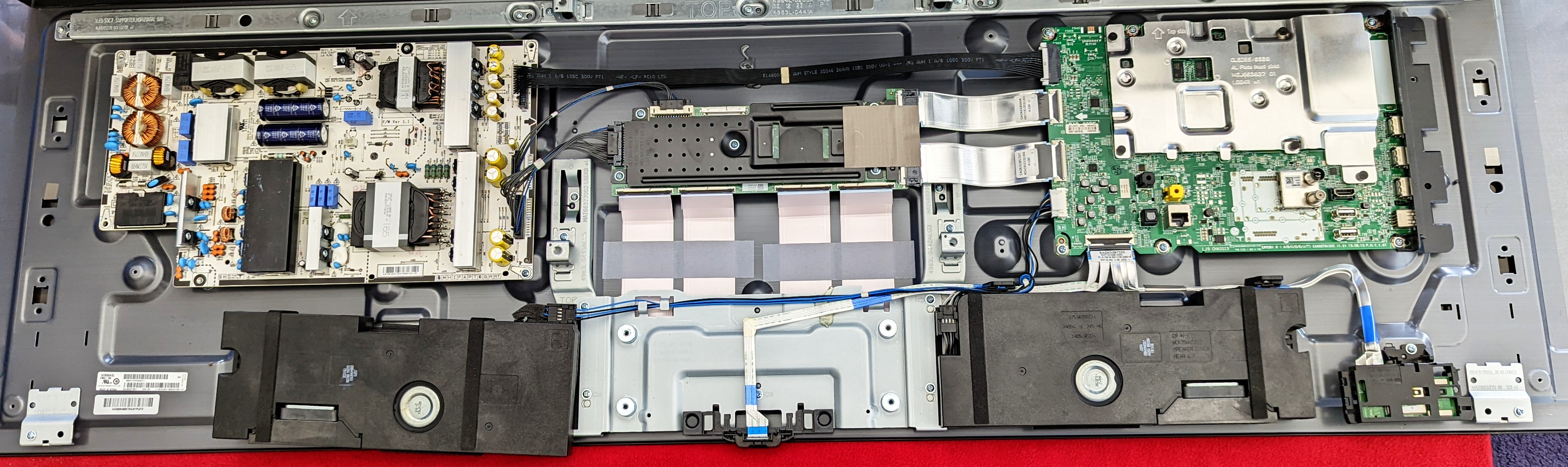
I called service, and they replaced the power supply (which costs ~200 USD) and that fixed the problem. That’s the board to the upper left on the image below. Its part number is EAY65170412, in case you wonder.
And by the way, the board to the upper right is the motherboard, and the thing in the middle is the screen panel controller.
(click image to enlarge)
May 19 update: A bit more than a month later, the screen works with no issues. So problem fixed for real. The LED blinks three-four times when I turn it on with the button on the screen itself. So the blinking LED is not an indication of a problem.
The problem I wanted to solve
On an embedded arm system running LUbuntu 16.04 LTS (systemd 229), I wanted to add a mount point to the /etc/fstab file, which originally was like this:
# UNCONFIGURED FSTAB FOR BASE SYSTEM
Empty, except for this message. Is that a bad omen or what? This is the time to mention that the system was set up with debootstrap.
So I added this row to /etc/fstab:
#/dev/mmcblk0p1 /mnt/tfcard vfat defaults 0 0
The result: Boot failed, and systemd asked me for the root password for the sake of getting a rescue shell (the overall systemd status was “maintenance”, cutely enough).
Journalctl was kind enough to offer some not-so-helpful hints:
systemd[1]: dev-mmcblk0p1.device: Job dev-mmcblk0p1.device/start timed out.
systemd[1]: Timed out waiting for device dev-mmcblk0p1.device.
systemd[1]: Dependency failed for /mnt/tfcard.
systemd[1]: Dependency failed for Local File Systems.
systemd[1]: local-fs.target: Job local-fs.target/start failed with result 'dependency'.
systemd[1]: local-fs.target: Triggering OnFailure= dependencies.
systemd[1]: mnt-tfcard.mount: Job mnt-tfcard.mount/start failed with result 'dependency'.
systemd[1]: dev-mmcblk0p1.device: Job dev-mmcblk0p1.device/start failed with result 'timeout'.
Changing the “defaults” option to “nofail” got the system up and running, but without the required mount. That said, running “mount -a” did successfully mount the requested partition.
Spoiler: I didn’t really find a way to solve this, but I offer a fairly digestible workaround at the end of this post.
This is nevertheless an opportunity to discuss systemd dependencies and how systemd relates with /etc/fstab.
The main takeaway: Use “nofail”
This is only slightly related to the main topic, but nevertheless the most important conclusion: Open your /etc/fstab, and add “nofail” as an option to all mount points, except those that really are crucial for booting the system. That includes “/home” if it’s on a separate file system, as well as those huge file systems for storing a lot of large files. The rationale is simple: If any of these file systems are corrupt during boot, you really don’t want to be stuck on that basic textual screen (possibly with very small fonts), not having an idea what happened, and fsck asking you if you want to fix this and that. It’s much easier to figure out the problem when the failing mount points simply don’t mount, and take it from there. Not to mention that it’s much less stressful when the system is up and running. Even if not fully so.
Citing “man systemd.mount”: “With nofail, this mount will be only wanted, not required, by local-fs.target or remote-fs.target. This means that the boot will continue even if this mount point is not mounted successfully”.
To do this properly, make a tarball of /run/systemd/generator. Keep an eye on what’s in local-fs.target.requires/ vs. local-fs.target.wants/ in this directory. Only the absolutely necessary mounts should be in local-fs.target.requires/. In my system there’s only one symlink for “-.mount”, which is the root filesystem. That’s it.
Regardless, it’s a good idea that the root filesystem has the errors=remount-ro option, so if it’s mountable albeit with errors, the system still goes up.
This brief discussion will be clearer after reading through this post. Also see “nofail and dependencies” below for an elaboration on how systemd treats the “nofail” option.
/etc/fstab and systemd
At an early stage of the boot process, systemd-fstab-generator reads through /etc/fstab, and generates *.mount systemd units in /run/systemd/generator/. Inside this directory, it also generates and populates a local-fs.target.requires/ directory as well local-fs.target.wants/ in order to reflect the necessity of these units for the boot process (more about dependencies below).
So for example, in response to this row in /etc/fstab,
/dev/mmcblk0p1 /mnt/tfcard vfat nofail 0 0
the automatically generated file can be found as /run/systemd/generator/mnt-tfcard.mount as follows:
# Automatically generated by systemd-fstab-generator

[Unit]
SourcePath=/etc/fstab
Documentation=man:fstab(5) man:systemd-fstab-generator(8)

[Mount]
What=/dev/mmcblk0p1
Where=/mnt/tfcard
Type=vfat
Options=nofail
Note that the file name of a mount unit must match the mount point (as it does in this case). This is only relevant when writing mount units manually, of course.
Which brings me to my first attempt to solve the problem: Namely, to copy the automatically generated file into /etc/systemd/system/, and enable it as if I wrote it myself. And then remove the row in /etc/fstab.
More precisely, I created this file as /etc/systemd/system/mnt-tfcard.mount:
[Unit]
Description=Mount /dev/mmcblk0p1 as /mnt/tfcard

[Mount]
What=/dev/mmcblk0p1
Where=/mnt/tfcard
Type=vfat
Options=nofail

[Install]
WantedBy=multi-user.target
Note that the WantedBy is necessary for enabling the unit. multi-user.target is a bit inaccurate for this purpose, but it failed for a different reason anyhow, so who cares. It should have been “WantedBy=local-fs.target”, I believe.
Anyhow, I then went:
# systemctl daemon-reload
# systemctl enable mnt-tfcard.mount
Created symlink from /etc/systemd/system/multi-user.target.wants/mnt-tfcard.mount to /etc/systemd/system/mnt-tfcard.mount.
And then ran
# systemctl start mnt-tfcard.mount
but that was just stuck for a few seconds, and then an error message. There was no problem booting (because of “nofail”), but the mount wasn’t performed.
To investigate further, I attached strace to the systemd process (PID 1) while running the “systemctl start” command, and there was no fork. In other words, I had already then a good reason to suspect that the problem wasn’t a failed mount attempt, but that systemd didn’t go as far as trying. Which isn’t so surprising, given that the original complaint was a dependency problem.
Also, the command
# systemctl start dev-mmcblk0p1.device
didn’t finish. Checking with “systemctl”, it just said:
UNIT                 LOAD   ACTIVE     SUB       JOB   DESCRIPTION
dev-mmcblk0p1.device loaded inactive   dead      start dev-mmcblk0p1.device

[ ... ]
So have we just learned? That it’s possible to create .mount units instead of populating /etc/fstab. And that the result is exactly the same. Why that would be useful, I don’t know.
See “man systemd-fstab-generator” about how the content of fstab is translated automatically to systemd units. Also see “man systemd-fsck@.service” regarding the service that runs fsck, and refer to “man systemd.mount” regarding mount units.
A quick recap on systemd dependencies
It’s important to make a distinction between dependencies that express requirements and dependencies that express the order of launching units (“temporal dependencies”).
I’ll start with the first sort: Those that express that if one unit is activated, other units need to be activated too (“pulled in” as it’s often referred to). Note that the requirement kind of dependencies don’t say anything about one unit waiting for another to complete its activation or anything of that sort. The whole point is to start a lot of units in parallel.
So first, we have Requires=. When it appears in a unit file, it means that the listed unit must be started if the current unit is started, and that if that listed unit fails, the current unit will fail as well.
In the opposite direction, there’s RequiredBy=. It’s exactly like putting a Required= directive in the unit that is listed.
Then we have another famous couple, Wants= and its opposite WantedBy=. These are the merciful counterparts of Requires= and RequriedBy=. The difference: If the listed unit fails, the other unit may activate successfully nevertheless. The failure is marked by the fact that “systemctl status” will declare the system as “degraded”.
So the fact that basically every service unit ends with “WantedBy=multi-user.target” means that the unit file says “if multi-user.target is a requested target (i.e. practically always), you need to activate me”, but at the same time it says “if I fail, don’t fail the entire boot process”. In other words, had RequriedBy= been used all over the place instead, it would have worked just the same, as long as all units started successfully. But if one of them didn’t, one would get a textual rescue shell instead of an almost fully functional (“degraded”) system.
There are a whole lot of other directives for defining dependencies. In particular, there are also Requisite=, ConsistsOf=, BindsTo=, PartOf=, Conflicts=, plus tons of possible directives for fine-tuning the behavior of the unit, including conditions for starting and whatnot. See “man systemd.unit”. There’s also a nice summary table on that man page.
It’s important to note that even if unit X requires unit Y by virtue of the directives mentioned above, systemd may (and often will) activate them at the same time. That’s true for both “require” and “want” kind of directives. In order to control the order of activation, we have After= and Before=. After= and Before= also ensure that the stopping of units occur in the reverse order.
After= and Before= only define when the units are started, and are often used in conjunction with the directives that define requirements. But by themselves, After= and Before= don’t define a relation of requirement between units.
It’s therefore common to use Required= and After= on the same listed unit, meaning that the listed unit must complete successfully before activating the unit for which these directives are given. Same with RequiredBy= and Before=, meaning that this unit must complete before the listed unit can start.
Once again, there are more commands, and more to say on those I just mentioned. See “man systemd.unit” for detailed info on this. Really, do. It’s a good man page. There’s a lot of “but if” to be aware of.
“nofail” and dependencies
One somewhat scary side-effect of adding “nofail” is that the line saying “Before=local-fs.target” doesn’t appear in the *.mount unit files that are automatically generated. Does it mean that the services might be started before these mounts have taken place?
I can’t say I’m 100% sure about this, but it would be really poor design if it was that way, as it would have have added a very unexpected side-effect to “nofail”. Looking at the system log of a boot with almost all mounts with “nofail”, it’s evident that they were mounted after “Reached target Local File Systems” is announced, but before “Reached target System Initialization”. Looking at a system log before adding these “nofail” options, all mounts were made before “Reached target Local File Systems”.
So what happens here? It’s worth mentioning that in local-fs.target, it only says After=local-fs-pre.target in relation to temporal dependencies. So that can explain why “Reached target Local File Systems” is announced before all mounts have been completed.
But then, local-fs.target is listed in sysinit.target’s After= as well as Wants= directives. I haven’t found any clear-cut definition to whether “After=” waits until all “wanted” units have been fully started (or officially failed). The term that is used in “man systemd.unit” in relation to waiting is “finished started up”, but what does that mean exactly? This manpage also says “Most importantly, for service units start-up is considered completed for the purpose of Before=/After= when all its configured start-up commands have been invoked and they either failed or reported start-up success”. But what about “want” relations?
So I guess systemd interprets the “After” directive on local-fs.target in sysinit.target as “wait for local-fs.target’s temporal dependencies as well, even if local-fs.target doesn’t wait for them”.
Querying dependencies
So how can we know which unit depends on which? In order to get the system’s tree of dependencies, go
$ systemctl list-dependencies
This recursively shows the dependency tree that is created by Requires, RequiredBy, Wants, WantedBy and similar relations. Usually, only target units are followed recursively. In order to display the entire tree, add the –all flag.
The units that are listed are those that are required (or “wanted”) in order to reach the target that is being queried (“default.target” if no target specified).
As can be seen from the output, the filesystem mounts are made in order to reach the local-fs.target target. To get the tree of only this target:
$ systemctl list-dependencies local-fs.target
The output of this command are the units that are activated for the sake of reaching local-fs.target. “-.mount” is the root mount, by the way.
It’s also possible to obtain the reverse dependencies with the –reverse flag. In other words, in order to see which targets rely on a local-fs.target, go
$ systemctl list-dependencies --reverse local-fs.target
list-dependencies doesn’t make a distinction between “required” or “wanted”, and neither does it show the nuances of the various other possibilities for creating dependencies. For this, use “systemctl show”, e.g.
$ systemctl show local-fs.target
This lists all directives, explicit and implicit, that have been made on this unit. A lot of information to go through, but that’s the full picture.
If the –after flag is added, the tree of targets with an After= directive (and other implicit temporal dependencies, e.g. mirrored Before= directives) is printed out. Recall that this only tells us something about the order of execution, and nothing about which unit requires which. For example:
$ systemctl list-dependencies --after local-fs.target
Likewise, there’s –before, which does the opposite.
Note that the names of the flags are confusing: –after tells us about the targets that are started before local-fs.target, and –before tells us about the targets started after local-fs.target. The rationale: The spirit of list-dependencies (without –reverse) is that it tells us what is needed to reach the target. Hence following the After= directives tells us what had to be before. And vice versa.
Red herring #1
After this long general discussion about dependencies, let’s go back to the original problem: The mnt-tfcard.mount unit failed with status “dependency” and dev-mmcblk0p1.device had the status inactive / dead.
Could this be a dependency thing?
# systemctl list-dependencies dev-mmcblk0p1.device
dev-mmcblk0p2.device
● └─mnt-tfcard.mount
# systemctl list-dependencies mnt-tfcard.mount
mnt-tfcard.mount
● ├─dev-mmcblk0p1.device
● └─system.slice
Say what? dev-mmcblk0p2.device depends on mnt-tfcard.mount? And even more intriguing, mnt-tfcard.mount depends on dev-mmcblk0p2.device, so it’s a circular dependency! This must be the problem! (not)
This was the result regardless of whether I used /etc/fstab or my own mount unit file instead. I also tried adding DefaultDependencies=no on mnt-tfcard.mount’s unit file, but that made no difference.
Neither did this dependency go away when the last parameter in /dev/fstab was changed from 0 to 2, indicating that fsck should be run on the block device prior to mount. The dependency changed, though. What did change was mnt-tfcard.mount’s dependencies, but that’s not the problem.
# systemctl list-dependencies mnt-tfcard.mount
mnt-tfcard.mount
● ├─dev-mmcblk0p1.device
● ├─system.slice
● └─systemd-fsck@dev-mmcblk0p1.service
# systemctl list-dependencies systemd-fsck@dev-mmcblk0p1.service
systemd-fsck@dev-mmcblk0p1.service
● ├─dev-mmcblk0p1.device
● ├─system-systemd\x2dfsck.slice
● └─systemd-fsckd.socket
But the thing is that the cyclic dependency isn’t an error. This is the same queries on the /boot mount (/dev/sda1, ext4) of another computer:
$ systemctl list-dependencies boot.mount
boot.mount
● ├─-.mount
● ├─dev-disk-by\x2duuid-063f1689\x2d3729\x2d425e\x2d9319\x2dc815ccd8ecaf.device
● ├─system.slice
● └─systemd-fsck@dev-disk-by\x2duuid-063f1689\x2d3729\x2d425e\x2d9319\x2dc815ccd8ecaf.service
And the back dependency:
$ systemctl list-dependencies 'dev-disk-by\x2duuid-063f1689\x2d3729\x2d425e\x2d9319\x2dc815ccd8ecaf.device'
dev-disk-by\x2duuid-063f1689\x2d3729\x2d425e\x2d9319\x2dc815ccd8ecaf.device
● └─boot.mount
The mount unit depends on the device unit and vice versa. Same thing, but this time it works.
Why does the device unit depend on the mount unit, one may ask. Not clear.
Red herring #2
At some point, I thought that the reason for the problem was that the filesystem’s “dirty bit” was set:
# fsck /dev/mmcblk0p1
fsck from util-linux 2.27.1
fsck.fat 3.0.28 (2015-05-16)
0x25: Dirty bit is set. Fs was not properly unmounted and some data may be corrupt.
1) Remove dirty bit
2) No action
By the way, using “fsck.vfat” instead of just “fsck” did exactly the same. The former is what the systemd-fsck service uses, according to the man page.
But this wasn’t the problem. Even after removing the dirty bit, and with fsck reporting success, dev-mmcblk0p1.device would not start.
The really stinking fish
What really is fishy on the system is this output of “systemctl –all”:
dev-mmcblk0p2.device loaded activating tentative /dev/mmcblk0p2
/dev/mmcblk0p2 is the partition that is mounted as root! It should be “loaded active plugged”! All devices have that status, except for this one.
Lennart Poettering (i.e. the horse’s mouth) mentions that “If the device stays around in “tentative” state, then this indicates that a device appears in /proc/self/mountinfo with some name, and systemd can’t find a matching device in /sys for it, probably because for some reason it has a different name”.
And indeed, this is the relevant row in /proc/self/mountinfo:
16 0 179:2 / / rw,relatime shared:1 - ext4 /dev/root rw,data=ordered
So the root partition appears as /dev/root. This device file doesn’t even exist. The real one is /dev/mmcblk0p2, and it’s mentioned in the kernel’s command line. On this platform, Linux boots without any initrd image. The kernel mounts root by itself, and takes it from there.
As Lennart points out in a different place, /dev/root is a special creature that is made up in relation to mounting a root filesystem by the kernel.
At this point, I realized that I’m up against a quirk that has probably been solved silently during the six years since the relevant distribution was released. In other words, no point wasting time looking for the root cause. So this calls for…
The workaround
With systemd around, writing a service is a piece of cake. So I wrote a trivial service which runs mount when it’s started and umount when it’s stopped. Not a masterpiece in terms of software engineering, but it gets the job done without polluting too much.
The service file, /etc/systemd/system/mount-card.service is as follows:
[Unit]
Description=TF card automatic mount

[Service]
ExecStart=/bin/mount /dev/mmcblk0p1 /mnt/tfcard/
ExecStop=/bin/umount /mnt/tfcard/
Type=simple
RemainAfterExit=yes

[Install]
WantedBy=local-fs.target
Activating the service:
# systemctl daemon-reload
# systemctl enable mount-card
Created symlink from /etc/systemd/system/local-fs.target.wants/mount-card.service to /etc/systemd/system/mount-card.service.
And reboot.
The purpose of “RemainAfterExit=yes” is to make systemd consider the service active even after the command exits. Without this row, the command for ExecStop runs immediately after ExecStart, so the device is unmounted immediately after it has been mounted. Setting Type to oneshot doesn’t solve this issue, by the way. The only difference between “oneshot” and “simple” is that oneshot delays the execution of other units until it has exited.
There is no need to add an explicit dependency on the existence of the root filesystem, because all services have an implicit Required= and After= dependency on sysinit.target, which in turn depends on local-fs.target. This also ensures that the service is stopped before an attempt to remount root as read-only during shutdown.
As for choosing local-fs.target for the WantedBy, it’s somewhat questionable, because no service can run until sysinit.target has been reached, and the latter depends on local-fs.target, as just mentioned. More precisely (citing “man systemd.service”), “service units will have dependencies of type Requires= and After= on sysinit.target, a dependency of type After= on basic.target”. So this ensures that the service is started after the Basic Target has been reached and shuts down before this target is shut down.
That said, setting WantedBy this way is a more accurate expression of the purpose of this service. Either way, the result is that the unit is marked for activation on every boot.
I don’t know if this is the place to write “all well that ends well”. I usually try to avoid workarounds. But in this case it was really not worth the effort to insist on a clean solution. Not sure if it’s actually possible.