You have been warned
These are my pile of jots as I tried to install Argos “Gnome Shell Extension in seconds” on my Mint 19 Cinnamon machine. As the title implies, it didn’t work out, so I went for writing an applet from scratch, more or less.
Not being strong on Gnome internals, I’m under the impression that it’s simply because Cinnamon isn’t Gnome shell. This post is just the accumulation of notes I took while trying. Nothing to follow step-by-step, as it leads nowhere.
It’s here for the crumbs of info I gathered nevertheless.
Here we go
It says on the project’s Github page that a recent version of Gnome should include Argos. So I went for it:
# apt install gnome-shell-extensions
And since I’m at it:
# apt install gnome-tweaks
Restart Gnome shell: ALT-F2, type “r” and enter. For a second, it looks like a logout, but everything returns to where it was. Don’t hesitate doing this, even if there are a lot of windows opened.
Nada. So I went the manual way. First, found out my Gnome Shell version:
$ apt-cache show gnome-shell | grep Version
or better,
$ gnome-shell --version
GNOME Shell 3.28.3
and downloaded the extension for Gnome shell 3.28 from Gnome’s extension page. Then realized it’s slightly out of date with the git repo, so
$ git clone https://github.com/p-e-w/argos.git
$ cd argos
$ cp -r 'argos@pew.worldwidemann.com' ~/.local/share/cinnamon/extensions/
Note that I copied it into cinnamon’s subdirectory. It’s usually ~/.local/share/gnome-shell/extensions, but not when running Cinnamon!
Restart Gnome shell again: ALT-F2, type “r” and enter.
Then open the “Extensions” GUI thingy from the main menu. Argos extension appears. Select it and press the “+” button to add it.
Restart Gnome shell again. This time a notification appears, saying “Problems during Cinnamon startup” elaborating that “Cinnamon started successfully, but one or more applets, desklets or extensions failed to load”.
Looking at ~/.xsession-errors, I found
Cjs-Message: 12:14:42.822: JS LOG: [LookingGlass/error] [argos@pew.worldwidemann.com]: Missing property "cinnamon-version" in metadata.json
Can’t argue with that, can you? Let’s see:
$ cinnamon --version
Cinnamon 3.8.9
So edit ~/.local/share/cinnamon/extensions/argos@pew.worldwidemann.com/metadata.json and add the line marked in red (not at the end, because the last line doesn’t end with a comma):
  "version": 2,
  "cinnamon-version": [ "3.6", "3.8", "4.0" ],
  "shell-version": ["3.14", "3.16", "3.18", "3.20", "3.22", "3.24", "3.26", "3.28"]
I took this line from some applet I found under ~/.local/share/cinnamon. Not much thought given here.
And guess what? Reset again with ALT-F2 r. Failed again. Now in ~/.xsession-errors:
Cjs-Message: 12:50:32.643: JS LOG: [LookingGlass/error]
[argos@pew.worldwidemann.com]: No JS module 'extensionUtils' found in search path
[argos@pew.worldwidemann.com]: Error importing extension.js from argos@pew.worldwidemann.com
It seems like Cinnamon has changed the extension mechanism altogether, which explains why there’s no extension tab in Gnome Tweaker, and why extensionUtils is missing.
Maybe this explains it. Frankly, I didn’t bother to read that long discussion, but the underlying issue is probably buried there.
There are plenty of web pages describing the different escape codes for changing color of an ANSI emulating terminal. This is in particular useful for giving the shell prompt different colors, to prevent confusion between different computers, for example.
The trick is to set the PS1 bash variable. What is less told, is that \[ and \] tokens must enclose the color escape sequence, or things get completely crazy: Pasting into the terminal creates junk, newlines aren’t interpreted properly and a lot of other peculiarities with the cursor jumping to the wrong place all the time.
So this is wrong (just the color escape sequence, no enclosure):
PS1="\e[44m[\u@here \W]\e[m\\$ "
And this is right:
PS1="\[\e[44m\][\u@here \W]\[\e[m\]\\$ "
Even the “wrong” version about will produce the correct colors, but as mentioned above, other weird stuff happens.
+ how to just compile an Ubuntu distribution kernel without too much messing around.
Introduction
It’s not a real computer installation if the Wifi works out of the box. So these are my notes to self for setting up an access point on a 5 GHz channel. I’ll need it somehow, because each kernel upgrade will require tweaking with the kernel module.
The machine is running Linux Mint 19 (Tara, based upon Ubuntu Bionic, with kernel 4.15.0-20-generic). The NIC is Qualcomm Atheros QCA6174 802.11ac Wireless Network Adapter, Vendor/Product IDs 168c:003e.
Installing hostapd
# apt install hostapd
/etc/hostapd/hostapd.conf as follows:
macaddr_acl=0
auth_algs=1
ignore_broadcast_ssid=0

#Support older EAPOL authentication (version 1)
eapol_version=1

# Uncomment these for base WPA & WPA2 support with a pre-shared key
wpa=3
wpa_key_mgmt=WPA-PSK
wpa_pairwise=TKIP
rsn_pairwise=CCMP

wpa_passphrase=mysecret

# Customize these for your local configuration...
interface=wlan0
hw_mode=a
channel=52
ssid=mywifi
country_code=GD
and /etc/default/hostapd as follows:
DAEMON_CONF="/etc/hostapd/hostapd.conf"
DAEMON_OPTS=""
Then unmask the service by deleting /etc/systemd/system/hostapd.service (it’s a symbolic link to /dev/null).attempting to start the service with
5 GHz is not for plain people
Nov 27 21:14:04 hostapd[6793]: wlan0: IEEE 802.11 Configured channel (52) not found from the channel list of current mode (2) IEEE 802.11a
Nov 27 21:14:04 hostapd[6793]: wlan0: IEEE 802.11 Hardware does not support configured channel
What do you mean it’s not supported? It’s on the list!
# iw list
[ ... ]
	Band 2:
[ ... ]
          Frequencies:
			* 5180 MHz [36] (17.0 dBm) (no IR)
			* 5200 MHz [40] (17.0 dBm) (no IR)
			* 5220 MHz [44] (17.0 dBm) (no IR)
			* 5240 MHz [48] (17.0 dBm) (no IR)
			* 5260 MHz [52] (24.0 dBm) (no IR, radar detection)
			* 5280 MHz [56] (24.0 dBm) (no IR, radar detection)
			* 5300 MHz [60] (24.0 dBm) (no IR, radar detection)
			* 5320 MHz [64] (24.0 dBm) (no IR, radar detection)
			* 5500 MHz [100] (24.0 dBm) (no IR, radar detection)
			* 5520 MHz [104] (24.0 dBm) (no IR, radar detection)
			* 5540 MHz [108] (24.0 dBm) (no IR, radar detection)
			* 5560 MHz [112] (24.0 dBm) (no IR, radar detection)
			* 5580 MHz [116] (24.0 dBm) (no IR, radar detection)
			* 5600 MHz [120] (24.0 dBm) (no IR, radar detection)
			* 5620 MHz [124] (24.0 dBm) (no IR, radar detection)
			* 5640 MHz [128] (24.0 dBm) (no IR, radar detection)
			* 5660 MHz [132] (24.0 dBm) (no IR, radar detection)
			* 5680 MHz [136] (24.0 dBm) (no IR, radar detection)
			* 5700 MHz [140] (24.0 dBm) (no IR, radar detection)
			* 5720 MHz [144] (24.0 dBm) (no IR, radar detection)
			* 5745 MHz [149] (30.0 dBm) (no IR)
			* 5765 MHz [153] (30.0 dBm) (no IR)
			* 5785 MHz [157] (30.0 dBm) (no IR)
			* 5805 MHz [161] (30.0 dBm) (no IR)
			* 5825 MHz [165] (30.0 dBm) (no IR)
			* 5845 MHz [169] (disabled)
[ ... ]
The problem is evident when executing hostapd with the -dd flag (edit /etc/default/hostapd), in which case it lists the allowed channels. And none of the 5 GHz channels is listed. The underlying reason is the “no IR” part given in “iw list”, meaning no Initial Radiation, hence no access point allowed.
It’s very cute that the driver makes sure I won’t break the regulations, but it so happens that these frequencies are allowed in Israel for indoor use. My computer is indoors.
The way to work around this is to edit one of the driver’s sources, and use it instead.
Note that the typical error message when starting hostapd as a systemd service is quite misleading:
hostapd[735]: wlan0: IEEE 802.11 Configured channel (52) not found from the channel list of current mode (2) IEEE 802.11a
hostapd[735]: wlan0: IEEE 802.11 Hardware does not support configured channel
hostapd[735]: wlan0: IEEE 802.11 Configured channel (52) not found from the channel list of current mode (2) IEEE 802.11a
hostapd[735]: Could not select hw_mode and channel. (-3)
hostapd[735]: wlan0: interface state UNINITIALIZED->DISABLED
hostapd[735]: wlan0: AP-DISABLED
hostapd[735]: wlan0: Unable to setup interface.
hostapd[735]: wlan0: interface state DISABLED->DISABLED
hostapd[735]: wlan0: AP-DISABLED
hostapd[735]: hostapd_free_hapd_data: Interface wlan0 wasn't started
hostapd[735]: nl80211: deinit ifname=wlan0 disabled_11b_rates=0
hostapd[735]: wlan0: IEEE 802.11 Hardware does not support configured channel

[ ... ]

systemd[1]: hostapd.service: Control process exited, code=exited status=1
systemd[1]: hostapd.service: Failed with result 'exit-code'.
systemd[1]: Failed to start Advanced IEEE 802.11 AP and IEEE 802.1X/WPA/WPA2/EAP Authenticator.
Not only is the message marked in red (as it also appears with journalctl itself) not related to the real reason, which is given a few rows earlier (configured channel not found), but these important log lines don’t appear in the output of “systemctl status hostapd”, as they’re cut out.
Preparing for kernel compilation
In theory, I could have compiled the driver only, and replaced the files in the /lib/modules directory. But I’m in for a minimal change, and minimal brain effort. So the technique is to download the entire kernel, compile things that don’t really need compilation. Then pinpoint the correction, and recompile only that.
Unfortunately, Ubuntu’s view on kernel compilation seems to be that it can only be desired for preparing a deb package. After all, who wants to do anything else? So it gets a bit off the regular kernel compilation routine.
OK, so first I had to install some stuff:
# apt install libssl-dev
# apt install libelf-dev
Download the kernel (took me 25 minutes):
$ time git clone git://kernel.ubuntu.com/ubuntu/ubuntu-bionic.git
Compilation
The trick is to make the modules of a kernel that is identical to the running one (so there won’t be any bugs due to mismatches) and also match the kernel version string exactly (or the module won’t load).
Check out tag Ubuntu-4.15.0-20.21 (in my case, for 4.15.0-20-generic). This matches the kernel definition at the beginning of dmesg (and also the compilation date).
Follow this post and to prevent the “+” at the end of the kernel version.
Change directory to the kernel tree’s root, and copy the config file:
$ cp /boot/config-`uname -r` .config
Make sure the configuration is in sync:
$ make oldconfig
There will be some output, but no configuration question should be made — if that happens, it’s a sign that the wrong kernel revision has been checked out. In fact,
$ diff /boot/config-`uname -r` .config
should only output the difference in one comment line (the file’s header).
And then run the magic command:
$ fakeroot debian/rules clean
Don’t ask me what it’s for (I took it from this page), but among others, it does
cp debian/scripts/retpoline-extract-one scripts/ubuntu-retpoline-extract-one
and without it one gets the following error:
/bin/sh: ./scripts/ubuntu-retpoline-extract-one: No such file or directory
Ready to go, then. Compile only the modules. The kernel image itself is of no interest:
$ time make KERNELVERSION=`uname -r` -j 12 modules && echo Success
The -j 12 flag means running 12 processes in parallel. Pick your own favorite, depending in the CPU’s core count. Took 13 minutes on my machine.
Alternatively, compile just the relevant subdirectory. Quicker, no reason it shouldn’t work, but this is not how I did it myself:
$ make prepare scripts
$ time make KERNELVERSION=`uname -r` -j 12 M=drivers/net/wireless/ath/ && echo Success
And then use the same command when repeating the compilation below, of course.
Modify the ath.c file
Following this post (more or less) , edit drivers/net/wireless/ath/regd.c and neutralize the following functions with a “return” immediately after variable declarations. Or replace them with functions just returning immediately.
- ath_reg_apply_beaconing_flags()
- ath_reg_apply_ir_flags()
- ath_reg_apply_radar_flags()
Also add a “return 0″ in ath_regd_init_wiphy() just before the call to wiphy_apply_custom_regulatory(), so the three calls to apply-something functions are skipped. In the said post, the entire init function was disabled, but I found that unnecessarily aggressive (and probably breaks something).
Note that there’s e.g. __ath_reg_apply_beaconing_flags() functions. These are not the ones to edit.
And then recompile:
$ make KERNELVERSION=`uname -r` modules && echo Success
This recompiles regd.c and ath.c, and the generates ath.ko. Never mind that the file is huge (2.6 MB) in comparison with the original one (40 kB). Once in the kernel, they occupy the same size.
As root, rename the existing ath.ko in /lib/modules/`uname -r`/kernel/drivers/net/wireless/ath/ to something else (with a non-ko extension, or it remains in the dependency files), and copy the new one (from drivers/net/wireless/ath/) to the same place.
Unload modules from kernel:
# rmmod ath10k_pci && rmmod ath10k_core && rmmod ath
and reload:
# modprobe ath10k_pci
And check the result (yay):
# iw list
[ ... ]
		Frequencies:
			* 5180 MHz [36] (30.0 dBm)
			* 5200 MHz [40] (30.0 dBm)
			* 5220 MHz [44] (30.0 dBm)
			* 5240 MHz [48] (30.0 dBm)
			* 5260 MHz [52] (30.0 dBm)
			* 5280 MHz [56] (30.0 dBm)
			* 5300 MHz [60] (30.0 dBm)
			* 5320 MHz [64] (30.0 dBm)
			* 5500 MHz [100] (30.0 dBm)
			* 5520 MHz [104] (30.0 dBm)
			* 5540 MHz [108] (30.0 dBm)
			* 5560 MHz [112] (30.0 dBm)
			* 5580 MHz [116] (30.0 dBm)
			* 5600 MHz [120] (30.0 dBm)
			* 5620 MHz [124] (30.0 dBm)
			* 5640 MHz [128] (30.0 dBm)
			* 5660 MHz [132] (30.0 dBm)
			* 5680 MHz [136] (30.0 dBm)
			* 5700 MHz [140] (30.0 dBm)
			* 5720 MHz [144] (30.0 dBm)
			* 5745 MHz [149] (30.0 dBm)
			* 5765 MHz [153] (30.0 dBm)
			* 5785 MHz [157] (30.0 dBm)
			* 5805 MHz [161] (30.0 dBm)
			* 5825 MHz [165] (30.0 dBm)
			* 5845 MHz [169] (30.0 dBm)
[ ... ]
The no-IR marks are gone, and hostapd now happily uses these channels.
Probably not: Upgrading firmware
As I first through that the the problem was an old firmware version, as discussed on this forum post, I went for upgrading it. These are my notes on that. Spoiler: It was probably unnecessary, but I’ll never know, and neither will you.
From the dmesg output:
[   16.152377] ath10k_pci 0000:03:00.0: Direct firmware load for ath10k/pre-cal-pci-0000:03:00.0.bin failed with error -2
[   16.152387] ath10k_pci 0000:03:00.0: Direct firmware load for ath10k/cal-pci-0000:03:00.0.bin failed with error -2
[   16.201636] ath10k_pci 0000:03:00.0: qca6174 hw3.2 target 0x05030000 chip_id 0x00340aff sub 1a56:1535
[   16.201638] ath10k_pci 0000:03:00.0: kconfig debug 0 debugfs 1 tracing 1 dfs 0 testmode 0
[   16.201968] ath10k_pci 0000:03:00.0: firmware ver WLAN.RM.4.4.1-00079-QCARMSWPZ-1 api 6 features wowlan,ignore-otp crc32 fd869beb
[   16.386440] ath10k_pci 0000:03:00.0: board_file api 2 bmi_id N/A crc32 20d869c3
I was first mislead to think the firmware wasn’t loaded, but the later lines indicate it was acutally OK.
Listing the firmware files used by the kernel module:
$ modinfo ath10k_pci
filename:       /lib/modules/4.15.0-20-generic/kernel/drivers/net/wireless/ath/ath10k/ath10k_pci.ko
firmware:       ath10k/QCA9377/hw1.0/board.bin
firmware:       ath10k/QCA9377/hw1.0/firmware-5.bin
firmware:       ath10k/QCA6174/hw3.0/board-2.bin
firmware:       ath10k/QCA6174/hw3.0/board.bin
firmware:       ath10k/QCA6174/hw3.0/firmware-6.bin
firmware:       ath10k/QCA6174/hw3.0/firmware-5.bin
firmware:       ath10k/QCA6174/hw3.0/firmware-4.bin
firmware:       ath10k/QCA6174/hw2.1/board-2.bin
firmware:       ath10k/QCA6174/hw2.1/board.bin
firmware:       ath10k/QCA6174/hw2.1/firmware-5.bin
firmware:       ath10k/QCA6174/hw2.1/firmware-4.bin
firmware:       ath10k/QCA9887/hw1.0/board-2.bin
firmware:       ath10k/QCA9887/hw1.0/board.bin
firmware:       ath10k/QCA9887/hw1.0/firmware-5.bin
firmware:       ath10k/QCA988X/hw2.0/board-2.bin
firmware:       ath10k/QCA988X/hw2.0/board.bin
firmware:       ath10k/QCA988X/hw2.0/firmware-5.bin
firmware:       ath10k/QCA988X/hw2.0/firmware-4.bin
firmware:       ath10k/QCA988X/hw2.0/firmware-3.bin
firmware:       ath10k/QCA988X/hw2.0/firmware-2.bin
So which firmware file did it load? Well, there’s a firmware git repo for Atheros 10k:
$ git clone https://github.com/kvalo/ath10k-firmware.git
I’m not very happy running firmware found just somewhere, but the author of this Git repo is Kalle Valo, who works at Qualcomm. The Github account is active since 2010, and the files included in the Linux kernel are included there. So it looks legit.
Comparing files with the ones in the Git repo, which states the full version names, the files loaded were hw3.0/firmware-6.bin and another one (board-2.bin, I guess). The former went into the repo on Decemeber 18, 2017, which is more than a year after the problem in the forum post was solved. My firmware is hence fairly up to date.
Nevertheless, I upgraded to the ones added to the git firmware repo on November 13, 2018, and re-generated initramfs (not that it should matter — using lsinitramfs it’s clear that none of these firmware files are there). Did it help? As expected, no. But hey, now I have the latest and shiniest firmware:
[   16.498706] ath10k_pci 0000:03:00.0: firmware ver WLAN.RM.4.4.1-00124-QCARMSWPZ-1 api 6 features wowlan,ignore-otp crc32 d8fe1bac
[   16.677095] ath10k_pci 0000:03:00.0: board_file api 2 bmi_id N/A crc32 506ce037
Exciting! Not.
Be sure to read the first comment below, where I’m told netstat can actually do the job. Even though I have to admit that I still find lsof’s output more readable.
OK, so we have netstat to tell us which ports are opened for listening:
$ netstat -n -a | grep "LISTEN "
Thanks, that nice, but what process is listening to these ports? For TCP sockets, it’s (as root):
# lsof -n -P -i tcp 2>/dev/null | grep LISTEN
The -P flag disables conversion from port numbers to protocol names. -n prevents conversion of host names.
Background
Archaeological findings have revealed that prehistoric humans buried their forefathers under the floor of their huts. Fast forward to 2018, yours truly decided to continue running the (ancient) Fedora 12 as a chroot when migrating to Linux Mint 19. That’s an eight years difference.
While a lot of Linux users are happy to just install the new system and migrate everything “automatically”, this isn’t a good idea if you’re into more than plain tasks. Upgrading is supposed to be smooth, but small changes in the default behavior, API or whatever always make things that worked before fail, and sometimes with significant damage. Of the sort of not receiving emails, backup jobs not really working as before etc. Or just a new bug.
I’ve talked with quite a few sysadmins who were responsible for computers that actually needed to work continuously and reliably, and it’s not long before the apology for their ancient Linux distribution arrived. There’s no need to apologize: Upgrading is not good for keeping the system running smoothly. If it ain’t broke, don’t fix it.
But after some time, the hardware gets old and it becomes difficult to install new software. So I had this idea to keep running the old computer, with all of its properly running services and cronjobs, as a virtual machine. And then I thought, maybe go VPS-style. And then I realized I don’t need the VPS isolation at all. So the idea is to keep the old system as a chroot inside the new one.
Some services (httpd, mail handling, dhcpd) will keep running in the chroot, and others (the desktop in particular, with new shiny GUI programs) running natively. Old and new on the same machine.
The trick is making sure one doesn’t stamp on the feet of the other. These are my insights as I managed to get this up and running.
The basics
The idea is to place the old root filesystem (only) into somewhere in the new system, and chroot into it for the sake of running services and oldschool programs:
- The old root is placed as e.g. /oldy-root/ in the new filesystem (note that oldy is a legit alternative spelling for oldie…).
- bind-mounts are used for a unified view of home directories and those containing data.
- Some services are executed from within the chroot environment. How to run them from Mint 19 (hence using systemd) is described below.
- Running old programs is also possible by chrooting from shell. This is also discussed below.
Don’t put the old root on a filesystem that contains useful data, because odds are that such file system will be bind-mounted into the chrooted filesystem, which will cause a directory tree loop. Then try to calculate disk space or backup with tar. So pick a separate filesystem (i.e. a separate partition or LVM volume), or possibly as a subdirectory of the same filesystem as the “real” root.
Bind mounting
This is where the tricky choices are made. The point is to make the old and new systems see more or less the same application data, and also allow software to communicate over /tmp. So this is the relevant part in my /etc/fstab:
# Bind mounts for oldy root: system essentials
/dev                        /oldy-root/dev none bind                0       2
/dev/pts                    /oldy-root/dev/pts none bind            0       2
/dev/shm                    /oldy-root/dev/shm none bind            0       2
/sys                        /oldy-root/sys none bind                0       2
/proc                       /oldy-root/proc none bind               0       2

# Bind mounts for oldy root: Storage
/home                       /oldy-root/home none bind               0       2
/storage                    /oldy-root/storage none bind            0       2
/tmp                        /oldy-root/tmp  none bind               0       2
/mnt                        /oldy-root/mnt  none bind               0       2
/media                      /oldy-root/media none bind              0       2
Most notable are /mnt and /media. Bind-mounting these allows temporary mounts to be visible at both sides. /tmp is required for the UNIX domain socket used for playing sound from the old system. And other sockets, I suppose.
Note that /run isn’t bind-mounted. The reason is that the tree structure has changed, so it’s quite pointless (the mounting point used to be /var/run, and the place of the runtime files tend to change with time). The motivation for bind mounting would have been to let software from the old and new software interact, and indeed, there are a few UNIX sockets there, most notably the DBus domain UNIX socket.
But DBus is a good example of how hopeless it is to bind-mount /run: Old software attempting to talk with the Console Kit on the new DBus server fails completely at the protocol level (or namespace? I didn’t really dig into that).
So just copy the old /var/run into the root filesystem and that’s it. CUPS ran smoothly, GUI programs run fairly OK, and sound is done through a UNIX domain socket as suggested in the comments of this post.
I opted out on bind mounting /lib/modules and /usr/src. This makes manipulations of kernel modules (as needed by VMware, for example) impossible from the old system. But gcc is outdated for compiling under the new Linux kernel build system, so there was little point.
/root isn’t bind-mounted either. I wasn’t so sure about that, but in the end, it’s not a very useful directory. Keeping them separate makes the shell history for the root user distinct, and that’s actually a good thing.
Make /dev/log for real
Almost all service programs (and others) send messages to the system log by writing to the UNIX domain socket /dev/log. It’s actually a misnomer, because /dev/log is not a device file. But you don’t break tradition.
WARNING: If the logging server doesn’t work properly, Linux will fail to boot, dropping you into a tiny busybox rescue shell. So before playing with this, reboot to verify all is fine, and then make the changes. Be sure to prepare yourself for reverting your changes with plain command-line utilities (cp, mv, cat) and reboot to make sure all is fine.
In Mint 19 (and forever on), logging is handled by systemd-journald, which is a godsend. However for some reason (does anyone know why? Kindly comment below), the UNIX domain socket it creates is placed at /run/systemd/journal/dev-log, and /dev/log is a symlink to it. There are a few bug reports out there on software refusing to log into a symlink.
But that’s small potatoes: Since I decided not to bind-mount /run, there’s no access to this socket from the old system.
The solution is to swap the two: Make /dev/log the UNIX socket (as it was before), and /run/systemd/journal/dev-log the symlink (I wonder if the latter is necessary). To achieve this, copy /lib/systemd/system/systemd-journald-dev-log.socket into /etc/systemd/system/systemd-journald-dev-log.socket. This will make the latter override the former (keep the file name accurate), and make the change survive possible upgrades — the file in /lib can be overwritten by apt, the one in /etc won’t be by convention.
Edit the file in /etc, in the part saying:
[Socket]
Service=systemd-journald.service
ListenDatagram=/run/systemd/journal/dev-log
Symlinks=/dev/log
SocketMode=0666
PassCredentials=yes
PassSecurity=yes
and swap the files, making it
ListenDatagram=/dev/log
Symlinks=/run/systemd/journal/dev-log
instead.
All in all this works perfectly. Old programs work well (try “logger” command line utility on both sides). This can cause problems if the program expects “the real thing” on /run/systemd/journal/dev-log. Quite unlikely.
As a side note, I had this idea to make journald listen to two UNIX domain sockets: Dropping the Symlinks assignment in the original .socket file, and copying it into a new .socket file, setting ListenDatagram to /dev/log. Two .socket files, two UNIX sockets. Sounded like a good idea, only it failed with an error message saying “Too many /dev/log sockets passed”.
Running old services
systemd’s take on sysV-style services (i.e. those init.d, rcN.d scripts) is that when systemctl is called with reference to a service, it first tries with its native services, and if none is found, it looks for a service of that name in /etc/init.d.
In order to run old services, I wrote a catch-all init.d script, /etc/init.d/oldy-chrooter. It’s intended to be symlinked to, so it tells which service it should run from the command used to call it, then chroots, and executes the script inside the old system. And guess what, systemd plays along with this.
The script follows. Note that it’s written in Perl, but it has the standard info header, which is required on init scripts. String manipulations are easier this way.
#!/usr/bin/perl
### BEGIN INIT INFO
# Required-Start:    $local_fs $remote_fs $syslog
# Required-Stop:     $local_fs $remote_fs $syslog
# Default-Start:     2 3 4 5
# Default-Stop:      0 1 6
# X-Interactive:     false
# Short-Description: Oldy root wrapper service
# Description:       Start a service within the oldy root
### END INIT INFO

use warnings;
use strict;

my $targetroot = '/oldy-root';

my ($realcmd) = ($0 =~ /\/oldy-([^\/]+)$/);

die("oldy chroot delegation script called with non-oldy command \"$0\"\n")
  unless (defined $realcmd);

chroot $targetroot or die("Failed to chroot to $targetroot\n");

exec("/etc/init.d/$realcmd", @ARGV) or
  die("Failed to execute \"/etc/init.d/$realcmd\" in oldy chroot\n");
To expose the chroot’s httpd service, make a symlink in init.d:
# cd /etc/init.d/
# ln -s oldy-chrooter oldy-httpd
And then enable with
# systemctl enable oldy-httpd
oldy-httpd.service is not a native service, redirecting to systemd-sysv-install.
Executing: /lib/systemd/systemd-sysv-install enable oldy-httpd
which indeed runs /lib/systemd/systemd-sysv-install, a shell script, which in turn runs /usr/sbin/update-rc.d with the same arguments. The latter is a Perl script, which analyzes the init.d file, and, among others, parses the INFO header.
The result is the SysV-style generation of S01/K01 symbolic links into /etc/rcN.d. Consequently, it’s possible to start and stop the service as usual. If the service isn’t enabled (or disabled) with systemctl first, attempting to start and stop the service will result in an error message saying the service isn’t found.
It’s a good idea to install the same services on the “main” system and disable them afterwards. There’s no risk for overwriting the old root’s installation, and this allows installation and execution of programs that depend on these services (or they would complain based upon the software package database).
Running programs
Running stuff inside the chroot should be quick and easy. For this reason, I wrote a small C program, which opens a shell within the chroot when called without argument. With one argument, it executes it within the chroot. It can be called by a non-root user, and the same user is applied in the chroot.
This is compiled with
$ gcc oldy.c -o oldy -Wall -O3
and placed /usr/local/bin with setuid root:
#include <stdio.h>
#include <stdlib.h>
#include <string.h>
#include <errno.h>
#include <unistd.h>
#include <sys/types.h>
#include <pwd.h>

int main(int argc, char *argv[]) {
  const char jail[] = "/oldy-root/";
  const char newhome[] = "/oldy-root/home/eli/";
  struct passwd *pwd;

  if ((argc!=2) && (argc!=1)){
    printf("Usage: %s [ command ]\n", argv[0]);
    exit(1);
  }

  pwd = getpwuid(getuid());
  if (!pwd) {
    perror("Failed to obtain user name for current user(?!)");
    exit(1);
  }

  // It's necessary to set the ID to 0, or su asks for password despite the
  // root setuid flag of the executable

  if (setuid(0)) {
    perror("Failed to change user");
    exit(1);
  }

  if (chdir(newhome)) {
    perror("Failed to change directory");
    exit(1);
  }

  if (chroot(jail)) {
    perror("Failed to chroot");
    exit(1);
  }

  // oldycmd and oldyshell won't appear, as they're overridden by su

  if (argc == 1)
    execl("/bin/su", "oldyshell", "-", pwd->pw_name, (char *) NULL);
  else
    execl("/bin/su", "oldycmd", "-", pwd->pw_name, "-c", argv[1], (char *) NULL);
  perror("Execution failed");
  exit(1);
}
Notes:
- Using setuid root is a number one for security holes. I’m not sure I would have this thing on a computer used by strangers.
- getpwuid() gets the real user ID (not the effective one, as set by setuid), so the call to “su” is made with the original user (even if it’s root, of course). It will fail if that user doesn’t exist.
- … but note that the user in the chroot system is then one having the same user name as in the original one, not uid. There should be no difference, but watch it if there is (security holes…?)
- I used “su -” and not just executing bash for the sake of su’s “-” flag, which sets up the environment. Otherwise, it’s a mess.
It’s perfectly OK to run GUI programs with this trick. However it becomes extremely confusing with command line. Is this shell prompt on the old or new system? To fix this, edit /etc/bashrc in the chroot system only to change the prompt. I went for changing the line saying
[ "$PS1" = "\\s-\\v\\\$ " ] && PS1="[\u@\h \W]\\$ "
to
[ "$PS1" = "\\s-\\v\\\$ " ] && PS1="\[\e[44m\][\u@chroot \W]\[\e[m\]\\$ "
so the “\h” part, which turns into the host’s name now appears as “chroot”. But more importantly, the text background of the shell prompt is changed to blue (as opposed to nothing), so it’s easy to tell where I am.
If you’re into playing with the colors, I warmly recommend looking at this.
Lifting the user processes limit
At some point (it took a few months), I started to have failures of this sort:
$ oldy
oldyshell: /bin/bash: Resource temporarily unavailable
and even worse, some of the chroot-based utilities also failed sporadically.
Checking with ulimit -a, it turned out that the limit for the number of processes owned by my “regular” user was limited to 1024. Checking with ps, I had only about 510 processes belonging to that UID. So it’s not clear why I hit the limit. In the non-chroot environment, the limit is significantly higher.
So edit /etc/security/limits.d/90-nproc.conf (the one inside the jail), changing the line saying
-* soft nproc 1024
to
* soft nproc 65536
There’s no need for any reboot or anything of that sort, but the already running processes remain within the limit.
Desktop icons and wallpaper messup
This is a seemingly small, but annoying thing: When Nautilus is launched from within the old system, it restores the old wallpaper and sets all icons on the desktop. There are suggestions on how to fix it, but they rely on gsettings, which came after Fedora 12. Haven’t tested this, but is the common suggestion is:
$ gsettings set org.gnome.desktop.background show-desktop-icons false
So for old systems as mine, first, check the current value:
$ gconftool-2 --get /apps/nautilus/preferences/show_desktop
and if it’s “true”, fix it:
$ gconftool-2 --type bool --set /apps/nautilus/preferences/show_desktop false
The settings are stored in ~/.gconf/apps/nautilus/preferences/%gconf.xml.
Setting title in gnome-terminal
So someone thought that the possibility to set the title in the Terminal window, directly from the GUI, is unnecessary. That happens to be one of the most useful features, if you ask me. I’d really like to know why they dropped that. Or maybe not.
After some wandering around, and reading suggestions on how to do it in various other ways, I went for the old-new solution: Run the old executable in the new system. Namely:
# cd /usr/bin
# mv gnome-terminal new-gnome-terminal
# ln -s /oldy-root/usr/bin/gnome-terminal
It was also necessary to install some library stuff:
# apt install libvte9
But then it complained that it can’t find some terminal.xml file. So
# cd /usr/share/
# ln -s /oldy-root/usr/share/gnome-terminal
And then I needed to set up the keystroke shortcuts (Copy, Paste, New Tab etc.) but that’s really no bother.
Other things to keep in mind
- Some users and groups must be migrated from the old system to the new manually. I do this always when installing a new computer to make NFS work properly etc, but in this case, some service-related users and groups need to be in sync.
- Not directly related, but if the IP address of the host changes (which it usually does), set the updated IP address in /etc/sendmail.mc, and recompile. Or get an error saying “opendaemonsocket: daemon MTA: cannot bind: Cannot assign requested address”.
Motivation
I’m using resize2fs a lot to when backing up into a USB stick. The procedure is to create an image of an encrypted ext4 file system, and raw write it into the USB flash device. To save time writing to the USB stick the image is shrunk to its minimal size with resize2fs -M.
Uh-oh
This has been working great for years with my oldie resize2fs 1.41.9, but after upgrading my computer (Linux Mint 19), and starting to use 1.44.1, things began to go wrong:
# e2fsck -f /dev/mapper/temporary_18395
Pass 1: Checking inodes, blocks, and sizes
Pass 2: Checking directory structure
Pass 3: Checking directory connectivity
Pass 4: Checking reference counts
Pass 5: Checking group summary information
/dev/mapper/temporary_18395: 1078201/7815168 files (0.1% non-contiguous), 27434779/31249871 blocks

# resize2fs -M -p /dev/mapper/temporary_18395
resize2fs 1.44.1 (24-Mar-2018)
Resizing the filesystem on /dev/mapper/temporary_18395 to 27999634 (4k) blocks.
Begin pass 2 (max = 1280208)
Relocating blocks             XXXXXXXXXXXXXXXXXXXXXXXXXXXXXXXXXXXXXXXX
Begin pass 3 (max = 954)
Scanning inode table          XXXXXXXXXXXXXXXXXXXXXXXXXXXXXXXXXXXXXXXX
Begin pass 4 (max = 89142)
Updating inode references     XXXXXXXXXXXXXXXXXXXXXXXXXXXXXXXXXXXXXXXX
The filesystem on /dev/mapper/temporary_18395 is now 27999634 (4k) blocks long.

# e2fsck -f /dev/mapper/temporary_18395
e2fsck 1.44.1 (24-Mar-2018)
Pass 1: Checking inodes, blocks, and sizes
Inode 85354 extent block passes checks, but checksum does not match extent
	(logical block 237568, physical block 11929600, len 24454)
Fix<y>? yes
Inode 85942 extent block passes checks, but checksum does not match extent
	(logical block 129024, physical block 12890112, len 7954)
Fix<y>? yes
Inode 117693 extent block passes checks, but checksum does not match extent
	(logical block 53248, physical block 391168, len 8310)
Fix<y>? yes
Inode 122577 extent block passes checks, but checksum does not match extent
	(logical block 61440, physical block 399478, len 607)
Fix<y>? yes
Inode 129597 extent block passes checks, but checksum does not match extent
	(logical block 409600, physical block 14016512, len 12918)
Fix<y>? yes
Inode 129599 extent block passes checks, but checksum does not match extent
	(logical block 274432, physical block 13640964, len 1570)
Fix<y>? yes
Inode 129600 extent block passes checks, but checksum does not match extent
	(logical block 120832, physical block 14653440, len 13287)
Fix<y>? yes
Inode 129606 extent block passes checks, but checksum does not match extent
	(logical block 133120, physical block 14870528, len 16556)
Fix<y>? yes
Inode 129613 extent block passes checks, but checksum does not match extent
	(logical block 75776, physical block 15054848, len 23962)
Fix<y>? yes
Inode 129617 extent block passes checks, but checksum does not match extent
	(logical block 284672, physical block 15716352, len 7504)
Fix ('a' enables 'yes' to all) <y>? yes
Inode 129622 extent block passes checks, but checksum does not match extent
	(logical block 86016, physical block 15532032, len 18477)
Fix ('a' enables 'yes' to all) <y>? yes
Inode 129626 extent block passes checks, but checksum does not match extent
	(logical block 145408, physical block 16967680, len 5536)
Fix ('a' enables 'yes' to all) <y>? yes
Inode 129630 extent block passes checks, but checksum does not match extent
	(logical block 165888, physical block 17125376, len 29036)
Fix ('a' enables 'yes' to all) <y>? yes
Inode 129677 extent block passes checks, but checksum does not match extent
	(logical block 126976, physical block 17100800, len 24239)
Fix<y>? yes
Pass 2: Checking directory structure
Pass 3: Checking directory connectivity
Pass 4: Checking reference counts
Pass 5: Checking group summary information
/dev/mapper/temporary_18395: 1078201/7004160 files (0.1% non-contiguous), 27383882/27999634 blocks
Not the end of the world
This bug has been reported and fixed. Judging by the change made, it was only about the checksums, so while the bug caused fsck to detect (and properly fix) errors, there’s no loss of data (I encountered the same problem when shrinking a 5.7 TB partition by 40 GB — fsck errors, but I checked every single file, a total of ~3 TB, and all was fine).
I beg to differ on the commit message saying it’s a “relatively rare case” as it happened to me every single time in two completely different settings, none of which were special in any way. However we all use journaled filesystems, so fsck checks have become rare, which can explain how this has gone unnoticed: Unless resize2fs officially failed somehow, it leaves the filesystem marked as clean. Only “e2fsck -f ” will reveal the problem.
I would speculate that the reason for this bug is this commit (end of 2014), which speeds up the checksum rewrite after moving an inode. It’s somewhat worrying that a program of this sensitive type isn’t tested properly before being released for everyone’s use.
My own remedy was to compile an updated revision (1.44.4) from the repository, commit ID 75da66777937dc16629e4aea0b436e4cffaa866e. Actually, I first tried to revert to resize2fs 1.41.9, but that one failed shrinking a 128 GB filesystem with only 8 GB left, saying it had run out of space.
Conclusion
It’s almost 2019, the word is that shrinking an ext4 filesystem is dangerous, and guess what, it’s probably a bit true. One could wish it wasn’t, but unfortunately the utilities don’t seem to be maintained with the level of care that one could hope for, given the damage they can make.
Using tar -c –one-file-system a lot for backing up large parts of my disk, I was surprised to note that it went straight into a large part that was bind-mounted into a subdirectory of the part I was backing up.
To put it clear: tar –one-file-system doesn’t (always) detect bind mounts.
Why? Let’s look, for example at the source code (tar version 1.30), src/incremen.c, line 561:
if (one_file_system_option && st->parent
 && stat_data->st_dev != st->parent->stat.st_dev)
 {
   [ ... ]
 }
So tar detects mount points by comparing the ID of the device containing the directory which is a candidate for diving into with its parent’s. This st_dev entry in the stat structure is a 16-bit concatenation of the device’s major and minor numbers, so it’s the underlying physical device (or pseudo device with a zero major for /proc, /sys etc). On a plain “stat filename” at command prompt, this appears as “Device”. For example,
$ stat /
 File: `/'
 Size: 4096          Blocks: 8          IO Block: 4096   directory
Device: fd03h/64771d    Inode: 2           Links: 29
Access: (0555/dr-xr-xr-x)  Uid: (    0/    root)   Gid: (    0/    root)
Access: 2018-11-24 15:37:17.072075635 +0200
Modify: 2018-09-17 03:55:01.871469999 +0300
Change: 2018-09-17 03:55:01.871469999 +0300
With “real” mounts, the underlying device is different, so tar detects that correctly. But with a bind mount from the same physical device, tar considers it to be the same filesystem.
Which is, in a way, correct. The bind-mounted part does, after all, belong to the same filesystem, and this is exactly what the –one-file-system promises. It’s only us, lazy humans, who expect –one-file-system not to dive into a mounted directory.
Unrelated, but still
Whatever you do, don’t press CTRL-C while the extracting goes on. If tar quits in the middle, there will be file ownerships and permissions unset, and symlinks set to zero-length files too. It wrecks the entire backup, even in places far away from where tar was working when it was stopped.
Introduction
These are my notes as I attempted to install Linux Mint 19.1 (Tara) on a machine with software RAID, full disk encryption (boot partitions excluded) and LVM. The thing is that the year is 2018, and the old MBR booting method is still available but not a good idea for a system that’s supposed to last. So UEFI it is. And that caused some issues.
For the RAID / encryption part, I had to set up the disks manually, which I’m completely fine with, as I merely repeated something I’ve already done several years ago, and then I thought the installer would get the hint.
But this wasn’t that simple at all. I believe I’ve run the installer some 20 times until I got it right. This reminded of a Windows installation: It’s simple as long as the installation is mainstream. Otherwise, you’re cooked.
And if this post seems a bit long, it’s because I spent two whole days shaving this yak.
And as a 2025 edit, there also a later post on installing Mint 22.2 with some additional insights.
Rule #1
This is a bit of a forward reference, but important enough for breaking the order: Whenever manipulating anything related to boot loading, be sure that the machine is already booted in UEFI mode. In particular, when booting from a Live USB stick, the computer might have chosen MBR mode and then the installation will be a mess.
The easiest way to check is with
# efibootmgr
EFI variables are not supported on this system.
If the error message above shows, it’s bad. Re-boot the system, and pick the UEFI boot alternative from the BIOS’ boot menu. If that doesn’t help, look in the kernel log for a reason UEFI isn’t activated. It might be a driver issue (even though it’s not the likely case).
When it’s fine, you’ll get something like this:
# efibootmgr
BootCurrent: 0003
Timeout: 1 seconds
BootOrder: 0000,0003,0004,0002
Boot0000* ubuntu
Boot0002* Hard Drive
Boot0003* UEFI: SanDisk Cruzer Switch 1.27
Boot0004* UEFI: SanDisk Cruzer Switch 1.27, Partition 2
Alternatively, check for the existence of /sys/firmware/efi/. If the “efi” directory is present, it’s most likely fine.
GPT in brief
The GUID partition table is the replacement for the (good old?) MBR-based one. It supports much larger disks, the old head-cylinder-sector terminology is gone forever, and it allows for many more partitions that you’ll ever need. In particular since we’ve got LVM. And instead of those plain numbers for each partition, they are now assigned long GUID identifiers, so there’s more mumbo-jumbo to print out.
GPT is often related to UEFI boot, but I’m not sure there’s any necessary connection. It’s nevertheless a good choice unless you’re a fan of dinosaurs.
UEFI in brief
UEFI / EFI is the boot process which replaces the not-so-good old MBR boot. The old MBR method involved reading a snippet of machine code from the MBR sector and execute it. That little piece of code would then load another chunk of code into memory from some sectors on the disk, and so on. All in all, a tiny bootloader loaded a small bootloader which loaded GRUB or LILO, and that eventually loaded Linux.
Confused with the MBR thingy? That’s because the MBR sector contains the partition information as well as the first stage boot loader. Homework: Can you do MBR boot on GPT? Can you do UEFI on an MBR partition?
Aside from the complicated boot process, this also required keeping track of those hidden sectors, so they won’t be overwritten by files. After all, the boot loader had to sit somewhere, and that was usually on sectors belonging to the main filesystem.
So it was messy.
EFI (and later UEFI) is a simple concept. Let the BIOS read the bootloader from a dedicated EFI partition in FAT format: When the computer is powered up, the BIOS scans this partition (or partitions) for boot binary candidates (files with .efi extension, containing the bootloader’s executable, in specific parts of the hierarchy), and lists them on its boot menu. Note that it may (and probably will) add good old MBR boot possibilities, if such exist, to the menu, even though they have nothing to do with UEFI.
And then the BIOS selects one boot option, possibly after asking the user. In our case, it’s preferably the one belonging to GRUB. Which turns out to be one of /EFI/BOOT/BOOTX64.EFI, /EFI/ubuntu/fwupx64.efi and /EFI/ubuntu/grubx64.efi (don’t ask me why GRUB generates three of them).
A lengthy guide to UEFI can be found here.
UEFI summarized
- The entire boot process is based upon plain files only. No “active boot partition”, no hidden sectors. Easy to backup, restore, even reverting to a previous setting by replacing the file content of two partitions.
- … but there’s now a need for a special EFI boot partition in FAT format.
- The BIOS doesn’t just list devices to boot from, but possibly several boot options from each device.
Two partitions just to boot?
In the good old days, GRUB hid somewhere on the disk, and the kernel / initramfs image could be on the root partition. So one could run Linux on a single partition (swap excluded, if any).
But the EFI partition is of FAT format (preferably FAT32), and then we have a little GRUB convention thing: The kernel and the initramfs image are placed in /boot. The EFI partition is on /boot/efi. So in theory, it’s possible to load the kernel and initramfs from the EFI partition, but the files won’t be where they usually are, and now have fun playing with GRUB’s configuration.
Now, even though it seems possible to have GRUB open both RAID and an encrypted filesystem, I’m not into this level of trickery. Hence /boot can’t be placed on the RAID’s filesystem, as it won’t be visible before the kernel has booted. So /boot has to be in a partition of its own. Actually, this is what is usually done with any software RAID / full disk encryption setting.
This is barely an issue in a RAID setting, because if one disk has a partition for booting purposes, it makes sense allocating the same non-RAID partition on the others. So put the EFI partition on one disk, and /boot on another.
Remember to back up the files in these two partitions. If something goes wrong, just restore the files from the backup tarball. Just don’t forget when recovering, that the EFI partition is FAT.
Finally: Does a partition need to be assigned EFI type to be detected as such? Probably not, but it’s a good idea to set it so.
Installing: The Wrong Way
What I did initially, was to boot from the Live USB stick, set up the RAID and encrypted /dev/md0, and happily click the “Install Ubuntu” icon. Then I went for a “something else” installation, picked the relevant LVM partitions, and kicked it off.
The installation failed with a popup saying “The ‘grub-efi-amd64-signed’ package failed to install into /target/” and then warn me that without the GRUB package the installed system won’t boot (which is sadly correct, but partly: I was thrown into a GRUB shell). Looking into /var/log/syslog, it said on behalf of grub-install: “Cannot find EFI directory.”
This was the case regardless of whether I selected /dev/sda or /dev/sda1 as the device to write bootloader into.
Different attempts to generate an EFI partition and then run the installer failed as well.
Installation (the right way)
Boot the system from a Live USB stick, and verify that you follow Rule #1 above. That is: Check that the “efibootmgr” returns something else than an error.
Then set up RAID + LUKS + LVM as described in this old post of mine. 8 years later, nothing has changed (except for the format of /etc/crypttab, actually). Only the Mint wasn’t as smooth on installing on top of this setting.
The EFI partition should be FAT32, and selected as “use as EFI partition” in the installer’s parted. Set the partition type of /dev/sda1 (only) to EFI (number 1 in GPT) and format it as FAT32. Ubiquity didn’t do this for me, for some reason. So manually:
# mkfs.fat -v -F 32 /dev/sda1
/dev/sdb1 will be used for /boot. /dev/sdc1 remains unused, most likely a place to keep the backups of the two boot related partitions.
So now to the installation itself.
Inspired by this guide, the trick is to skip the installation of the bootloader, and then do it manually. So kick off the RAID with mdadm, open the encrypted partition, verify that the LVM devfiles are in place in /dev/mapper. When opening the encrypted disk, assign the /dev/mapper name that you want to stay with — you’ll have to reboot to fix this later otherwise.
Then use the -b flag in the invocation of ubiquity to run a full installation, just without the bootloader.
# ubiquity -b
Go for a “something else” installation type, select to mount / in the dedicated encrypted LVM partition, and /boot in /dev/sdb1 (or any other non-RAID, non-encrypted partition). Make sure /dev/sda1 is detected an EFI partition, and that it’s intended for EFI boot.
Once it finishes (takes 50 minutes or so, all in all), an “Installation Complete” popup will suggest “Continue Testing” or “Restart Now”. So pick “Continue Testing”. There’s no bootloader yet.
The new operating system will still be mounted as /target. So bind-mount some necessities, and chroot into the new installation:
# for i in /dev /dev/pts /sys /proc /run ; do mount --bind $i /target/$i ; done
# chroot /target
All that follows below is within the new root.
First, mount /boot and /boot/efi with
# mount -a
This should work, as /etc/fstab should have been set up properly during the installation.
Then, (re)install RAID support:
# apt-get install mdadm
It may seem peculiar to install mdadm again, as it was necessary to run exactly the same apt-get command before assembling the RAID in order to get this far. However mdadm isn’t installed on the new system, and without that, there will be no RAID support in the to-be initramfs. Without that, the RAID won’t be assembled on boot, and hence boot will fail.
Set up /etc/crypttab, so it refers to the encrypted partition. Otherwise, there will be no attempt to open it during boot. Find the UUID with
# cryptsetup luksUUID /dev/md0
201b318f-3ffd-47fc-9e00-0356747e3a73
and then /etc/crypttab should say something like
luks-disk UUID=201b318f-3ffd-47fc-9e00-0356747e3a73 none luks
Note that “luks-disk” is just an arbitrary name, which will appear in /dev/mapper. This name should match the one currently found in /dev/mapper, or the inclusion of the crypttab’s info in the new initramfs is likely to fail (with a warning from cryptsetup).
Next, edit /etc/default/grub, making changes as desired (I went for GRUB_TIMEOUT_STYLE to “menu”, to always get a GRUB menu, and also remove “quiet splash” from the kernel command). There is no need for anything related to the use of RAID nor encryption.
Install the GRUB EFI package:
# apt-get install grub-efi-amd64
It might be a good idea to make sure that the initramfs is in sync:
# update-initramfs -u
Then install GRUB:
# update-grub
Generating grub configuration file ...
Found linux image: /boot/vmlinuz-4.15.0-20-generic
Found initrd image: /boot/initrd.img-4.15.0-20-generic
grub-probe: error: cannot find a GRUB drive for /dev/sdd1.  Check your device.map.
Adding boot menu entry for EFI firmware configuration
done
# grub-install
Installing for x86_64-efi platform.
Installation finished. No error reported.
It seems like the apt-get command also led to the execution of the initramfs update and GRUB installation. However I ran these commands nevertheless.
Don’t worry about the error on not finding anything for /dev/sdd1. It’s the USB stick. Indeed, it doesn’t belong.
That’s it. Cross fingers, and reboot. You should be prompted for the passphrase.
Epilogue: How does GRUB executable know where to go next?
Recall that GRUB is packaged as a chunk of code in an .efi file, which is loaded from a dedicated partition. The images are elsewhere. How does it know where to look for them?
So I don’t know exactly how, but it’s clearly fused into the GRUB’s bootloader binary:
# strings -n 8 /boot/efi/EFI/ubuntu/grubx64.efi | tail -2
search.fs_uuid f573c12a-c7e4-41e4-99ef-5fda4a595873 root hd1,gpt1
set prefix=($root)'/grub'
and it so happens that hd1,gpt1 is exactly /dev/sdb1, where the /boot partition is kept, and that the UUID matches the one given as “UUID=” for that partition by the “blkid” utility.
So moving /boot most likely requires reinstalling GRUB. Which isn’t a great surprise. See another post of mine for more about GRUB internals.
Conclusion
It’s a bit unfortunate that in 2018 Linux Mint Ubiquity didn’t manage to land on its feet, and even worse, to warn the user that it’s about to fail colossally. It could even have suggested not to install the bootloader…?
And maybe that’s the way it is: If you want a professional Linux system, better be professional yourself…
Introduction
These are my somewhat messy jots while setting up an APC Smart UPS 750 (SMT750I) with a Linux Mint 19 machine, for a clean shutdown on power failure. Failures and mistakes shown as well.
Even though I had issues with receiving a broken UPS at first, and waiting two months for a replacement (ridiculous support by Israeli Serv Pro support company), the bottom line is that it seems like a good choice: The UPS and its apcupsd driver handles the events in a sensible way, in particular when power returns after the shutdown process has begun (this is where UPSes tend to mess up).
As for battery replacement, two standard 12V / 7 AH batteries can be used, as shown in this video. Otherwise, good luck finding vendor-specific parts ten years from now in Israel. For my lengthy notes on battery replacement, see this separate post.
Turning off the UPS manually (and losing power to computer): Press and hold the power button until the second beep. The first beep confirms pressing the button, the second says releasing the button will shut down the UPS.
Turning off beeping when the UPS is on battery: Press the ESC button for a second or so.
Basic installation
Driver for UPS:
# apt-get install apcupsd
Settings
Edit /etc/apcupsd/apcupsd.conf, and remove the line saying
DEVICE /dev/ttyS0
Change TIMEOUT, so the system is shut down after 10 minutes of not having power. Don’t empty the batteries — I may want to fetch a file from the computer with the network power down. This timeout applies also if the computer was started in an on-battery state.
TIMEOUT 600
Don’t annoy anyone to log off. There is nobody to annoy except myself:
ANNOY 0
No need for a net info server. A security hole at best in my case.
NETSERVER off
Wrong. Keep the server, or apcaccess won’t work.
Stop “wall” messages
This is really unnecessary on a single-user computer (is it ever a good idea?). If power goes out, it’s dark and the UPS beeps. No need to get all shell consoles cluttered. The events are logged in /var/log/apcupsd.events as well as the syslog, so there’s no need to store them anywhere.
Edit /etc/apcupsd/apccontrol, changing
WALL=wall
to
WALL=cat
The bad news is that an apt-get upgrade on apcupsd is likely to revert this change.
Hello, world
Possibly as non-root:
$ apcaccess status
APC      : 001,027,0656
DATE     : 2018-10-28 21:36:29 +0200
HOSTNAME : preruhe
VERSION  : 3.14.14 (31 May 2016) debian
UPSNAME  : preruhe
CABLE    : USB Cable
DRIVER   : USB UPS Driver
UPSMODE  : Stand Alone
STARTTIME: 2018-10-28 21:36:27 +0200
MODEL    : Smart-UPS 750
STATUS   : ONLINE
BCHARGE  : 100.0 Percent
TIMELEFT : 48.0 Minutes
MBATTCHG : 5 Percent
MINTIMEL : 3 Minutes
MAXTIME  : 0 Seconds
ALARMDEL : 30 Seconds
BATTV    : 27.0 Volts
NUMXFERS : 0
TONBATT  : 0 Seconds
CUMONBATT: 0 Seconds
XOFFBATT : N/A
STATFLAG : 0x05000008
MANDATE  : 2018-05-22
SERIALNO : AS182158746
NOMBATTV : 24.0 Volts
FIRMWARE : UPS 09.3 / ID=18
END APC  : 2018-10-28 21:36:47 +0200
Shutting down UPS on computer shutdown
By default, the computer puts the UPS in “hibernation” mode at a late stage of its own shutdown. This turns the power down (saving battery), and resumes power when the network power returns. The trick is that apcupsd creates a /etc/apcupsd/powerfail file before shutting down the computer due to a power failure, and /lib/systemd/system-shutdown/apcupsd_shutdown handles the rest:
#!/bin/sh
# apcupsd: kill power via UPS (if powerfail situation)
# (Originally from Fedora.)

# See if this is a powerfail situation.
faildir=$(grep -e^PWRFAILDIR /etc/apcupsd/apcupsd.conf)
faildir="${faildir#PWRFAILDIR }"

if [ -f "${faildir:=/etc/apcupsd}/powerfail" ]; then
  echo
  echo "APCUPSD will now power off the UPS"
  echo
  /etc/apcupsd/apccontrol killpower
fi
Note that the powerfail file is created before the shutdown, not when the UPS goes on battery.
So for the fun, try
# touch /etc/apcupsd/powerfail
and then shutdown the computer normally. This shows the behavior of a shutdown forced by the UPS daemon. As expected, this file is deleted after booting the system (most likely by apcusbd itself).
What happens on shutdown
The UPS powers down after 90 seconds (after displaying a countdown on its small screen), regardless of whether power has returned or not. This is followed by a “stayoff” of 60 seconds, after which it will power on again when power returns. During the UPS hibernation, the four LEDs are doing a disco pattern.
I want the USB to stay off until I turn it on manually. The nature of power failures is that they can go on and off, and I don’t want the UPS to go on, and then empty the battery on these.
To make a full poweroff instead of a hibernation, edit (or create) /etc/apcupsd/killpower, so it says:
#!/bin/bash
#

APCUPSD=/sbin/apcupsd

echo "Apccontrol doing: ${APCUPSD} --power-off on UPS ${2}"
sleep 10
${APCUPSD} --power-off
echo "Apccontrol has done: ${APCUPSD} --power-off on UPS ${2}"

exit 99
This is more or less a replica of /etc/apcupsd/apccontrol’s handler for “killpower” command, only with apcupsd called with the –power-off flag instead of –killpower. The latter “hibernates” the UPS, so it wakes up when power returns. That’s the thing I didn’t want.
The “exit 99″ at the end inhibits apccontrol’s original handler.
So now there’s a “UPS TurnOff” countdown of 60 seconds, after which the UPS is shut down until power on manually.
Manual fixes
Set menus to advanced, if they’re not already. Then:
- Configuration > Auto Self Test, set to Startup Only: I tried to yank the battery’s plug on the UPS’ rear during a self test, and the computer’s power went down. So I presume that a failing self test will drop the power to the computer. Not clear what the point is.
- Configuration > Config Main Group Outlets > Turn Off Delay set to 10 seconds, to prevent an attempt to reboot the computer when the USB is about to power down. Surprisingly enough, this works when hibernating the UPS, but when enabling the power-off script above, the delay is 60 seconds, despite this change. I haven’t figured out how to change this.
Maybe the source code tells something
I dug in the sources for the reason that the UPS shuts down after 60 seconds, despite me setting the “Turn Off Delay” to 10 seconds directly on the UPS’ control buttons.
The relevant files in the acpupsd tarball:
- src/apcupsd.c: The actual daemon and main executable. Surprisingly readable.
- src/drivers/apcsmart/smartoper.c: The actual handlers of the operations (shutdown and power kill, with functions with obvious names). Written quite well, in terms of the persistence to carry out sensible operations when things go unexpected. Also see drivers/apcsmart/apcsmart.h.
So looking at smartoper.c, it turns out that the kill_power() method (which is used for “hibernation” of the UPS) sends a “soft” shutdown with an “S” command to the UPS, and doesn’t tell it the delay time. Hence the UPS decides the delay by itself (which is what I selected with the buttons).
The shutdown() method, on the other hand, calls apcsmart_ups_get_shutdown_delay(), which accepts an argument saying what the delay is. The name of this function is however misleading, as it just sends a shutdown command to the UPS, without telling it the delay. The figure in the delay is used only in the log messages. The UPS gets a “K” command, and doesn’t tell the UPS anything else. Basically, it works the same as kill_power(), only with a different command.
Trying NUT (actually, don’t)
What tempted me into trying out NUT was this page which implied that it has something related with shutdown.stayoff. And it’s keeping the UPS off that I wanted. But it seems like apcupsd is a much better choice.
Note my older post on NUT.
Since I went through the rubbish, here’s a quick runthrough. First install nut (which automatically ditches apcuspd (uninstalls it totally, it seems):
# apt-get install nut
The relevant part in /etc/nut/ups.conf for the ups named “smarter”:
[smarter]
        driver = usbhid-ups
        port = auto
        vendorid = 051d
I’m under the impression that the “port” assignment is ignored altogether. Don’t try it with other drivers — you’ll get “no such file”, for good reasons. Possibly usbhid-ups is the only way to utilize a USB connection.
And then in /etc/nut/upsmon.conf, added the line
MONITOR smarter@localhost 1 upsmon pass master
The truth is that I messed around a bit without too much notice of what I did, so I might have missed something. Anyhow, a reboot was required, after which the UPS was visible:
# upsc smarter
Init SSL without certificate database
battery.charge: 100
battery.charge.low: 10
battery.charge.warning: 50
battery.runtime: 3000
battery.runtime.low: 120
battery.type: PbAc
battery.voltage: 26.8
battery.voltage.nominal: 24.0
device.mfr: American Power Conversion
device.model: Smart-UPS 750
device.serial: AS1821351109
device.type: ups
driver.name: usbhid-ups
driver.parameter.pollfreq: 30
driver.parameter.pollinterval: 2
driver.parameter.port: auto
driver.parameter.synchronous: no
driver.parameter.vendorid: 051d
driver.version: 2.7.4
driver.version.data: APC HID 0.96
driver.version.internal: 0.41
ups.beeper.status: enabled
ups.delay.shutdown: 20
ups.firmware: UPS 09.3 / ID=18
ups.mfr: American Power Conversion
ups.mfr.date: 2018/05/22
ups.model: Smart-UPS 750
ups.productid: 0003
ups.serial: AS1821351109
ups.status: OL
ups.timer.reboot: -1
ups.timer.shutdown: -1
ups.vendorid: 051d
and getting the list of commands:
# upscmd -l smarter
Instant commands supported on UPS [smarter]:

beeper.disable - Disable the UPS beeper
beeper.enable - Enable the UPS beeper
beeper.mute - Temporarily mute the UPS beeper
beeper.off - Obsolete (use beeper.disable or beeper.mute)
beeper.on - Obsolete (use beeper.enable)
load.off - Turn off the load immediately
load.off.delay - Turn off the load with a delay (seconds)
shutdown.reboot - Shut down the load briefly while rebooting the UPS
shutdown.stop - Stop a shutdown in progress
So it didn’t really help.
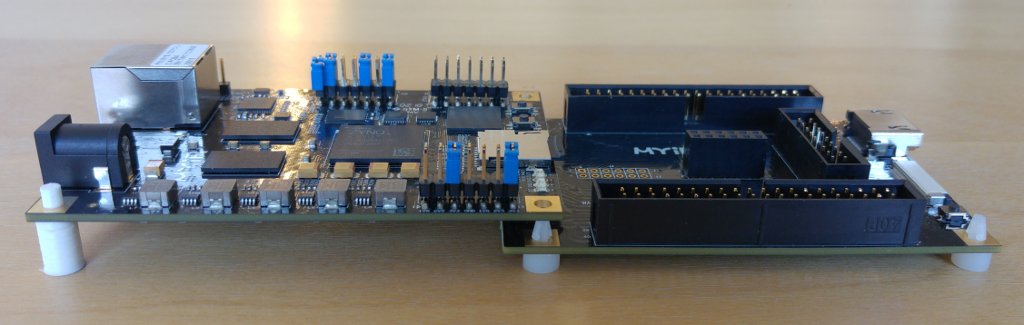
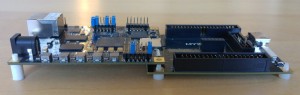 (click to enlarge)
Even though I find Myir’s Z-Turn Lite + its IO Cape combination of cards useful and well designed, there’s a small and annoying detail about them: The spacers that arrive with the boards don’t allow setting them up steadily on a flat surface, because the Z-Turn board is elevated over the IO Cape board. As a result, the former board’s far edge has no support, which makes the two boards wiggle. And a little careless movement is all it takes to have these boards disconnected from each other.
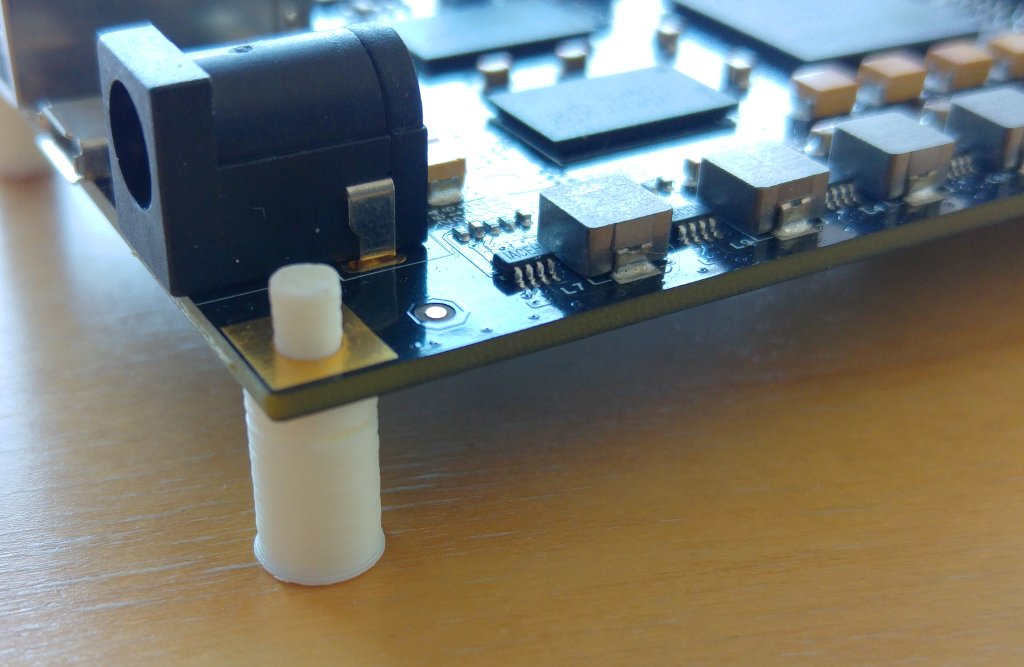
So I made a simple 3D design of a plastic leg (or spacer, if you like) for supporting the Z-Turn Lite board. See the small white thing holding the board to the left of the picture above? Or the one in the picture below? That’s the one.
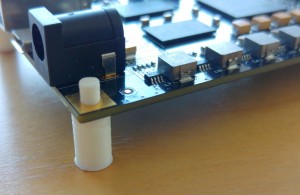
If you’d like to print your own, just click here to download a zip file containing the Blender v2.76 model file as well as a ready-to-print STL file. It’s hereby released to the public domain under Creative Common’s CC0 license.

The units of this model is millimeters. You’ll need this little part of info.
I printed mine at Hubs (they were 3D Hubs at the time). Because I bundled this with another, more bulky piece of work, the technique used was FDM at 200 μm, with standard ABS as material. If you’re into 3D printing, you surely just read “cheapest”. And indeed, printing four of these should cost no more than one USD. But then there’s the set-up cost and shipping, which will most likely be much more than the printing itself. So print a bunch of them, even though only two are needed. It’s going to be a few dollars anyhow.
Even though these spacers aren’t very pretty, and with zero mechanical sophistication, they do the job. At least those I got require just a little bit of force to get into the holes, and they stay there (thanks to the pin diameter of 3.2 mm, which matches the holes’ exactly). And because it’s such a dirt simple design, this model should be printable with any technique and rigid material.
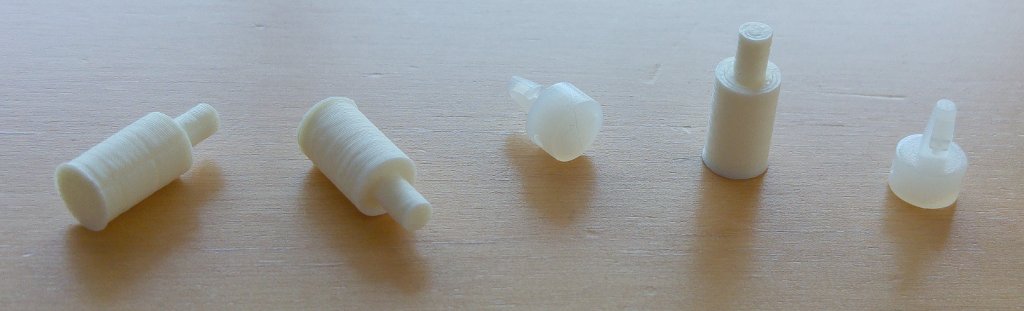
Wrapping up, here’s a picture of three printed spacers + two of the spacers that arrived with the boards. Just for comparison.